TABLE OF CONTENTS
2. How to Use Usage Insights Feature For Admins
1. Overview
This article provides detailed information on how to view overall product usage and the usage of individual features. It also enables admins to monitor the usage of their team members.
2. How to Use Usage Insights Feature for Admins
2.1 Overview
- Go to the dashboard and click the Launch icon next to Overview. This will redirect you to the Insights page.

- There are two tabs available: Overview and Users. By default, the Overview tab is selected when you open the Usage Insights page.
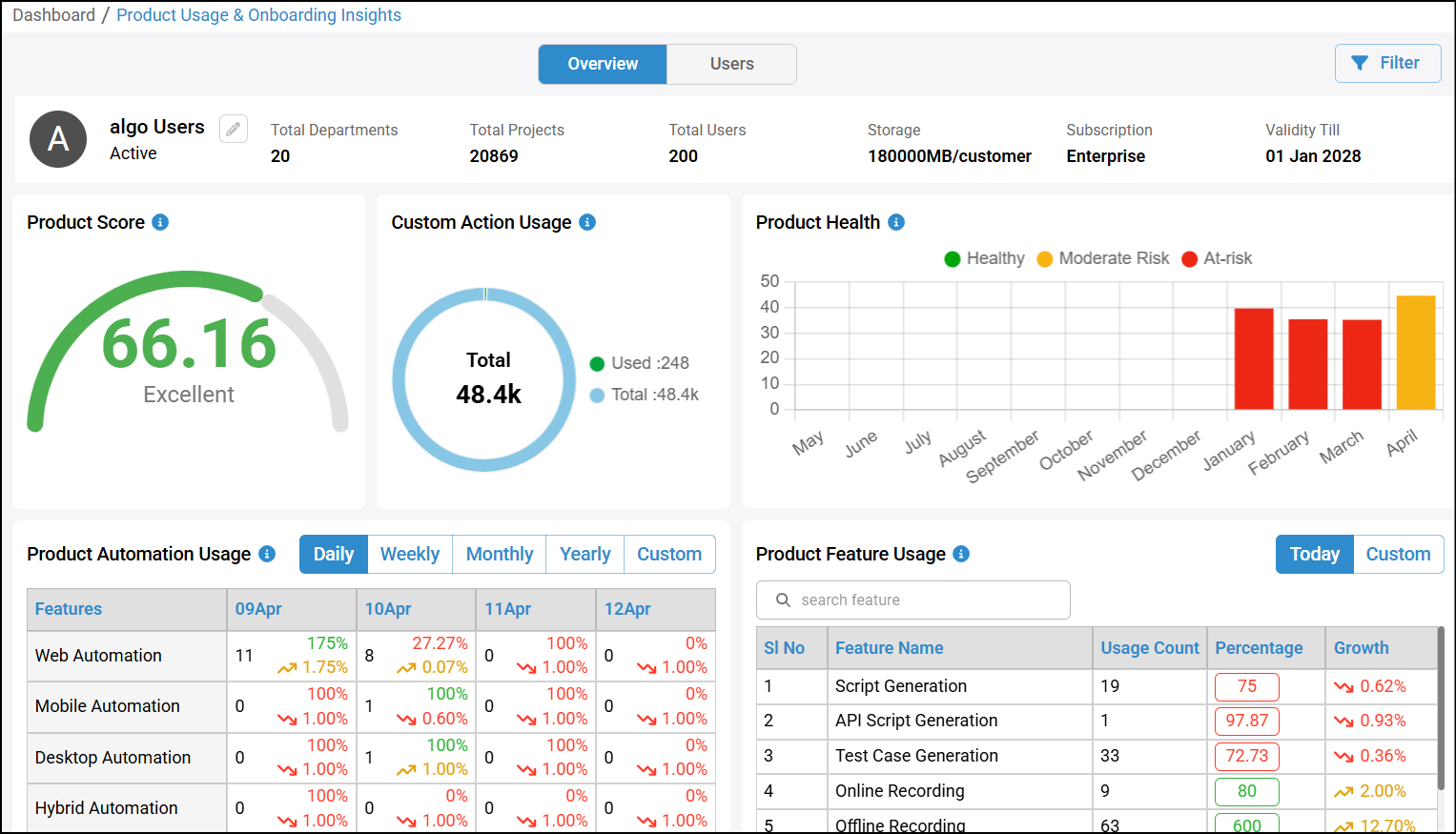
- At the top, you can view key details such as total departments, total projects, total users, storage, subscription type, and validity.

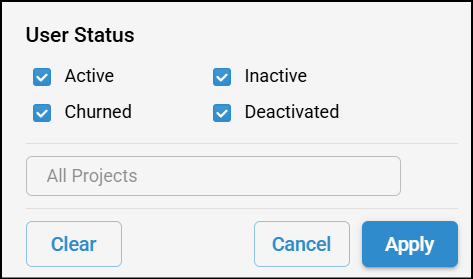
- A filter is available that allows you to refine results by selecting or unselecting the checkboxes for Active, Inactive, Churned, and Deactivated users. You can also filter by Project and then click Apply to view the results.
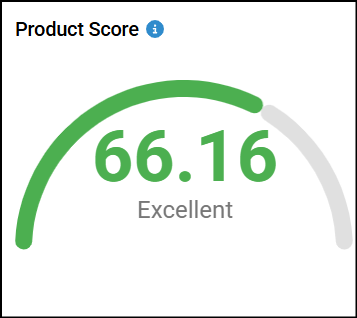
- You can view the Product Score, which is calculated based on how your users utilize features in algoQA.
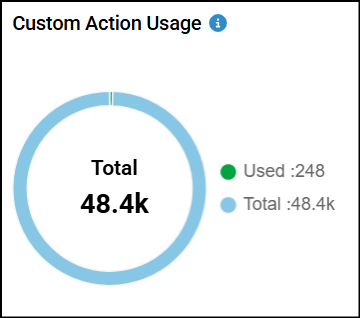
- Custom Action Usage, where you can view the total number of custom actions compared to the number of custom actions used by your users.
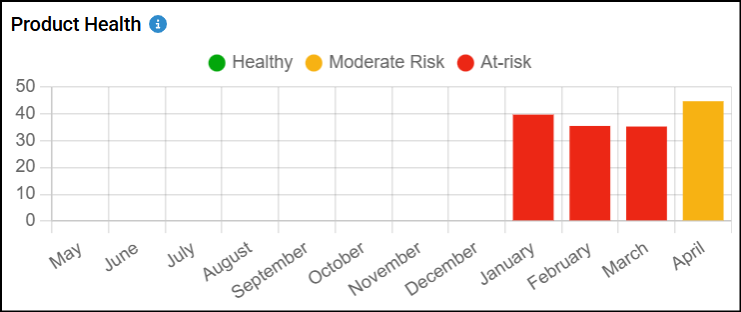
- Product Health Graph, where you can view the health of product usage for each month based on user activity. This section provides insights into the overall health and performance of the product, helping you identify areas for improvement and ensure an optimal user experience.
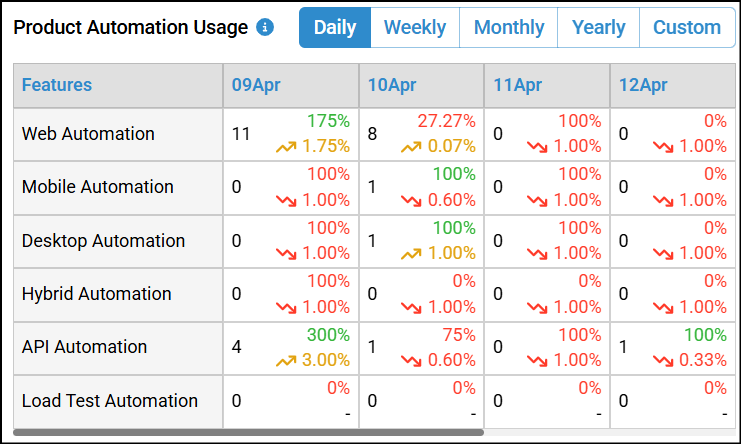
- Product Automation Usage allows you to view how your users are utilizing each automation type. The usage percentage increases as your users create projects across different automation types. You can filter the data by daily, weekly, monthly, or custom time ranges. This section provides insights into user interactions with the product, highlighting key usage metrics and trends to help optimize user engagement and overall satisfaction.
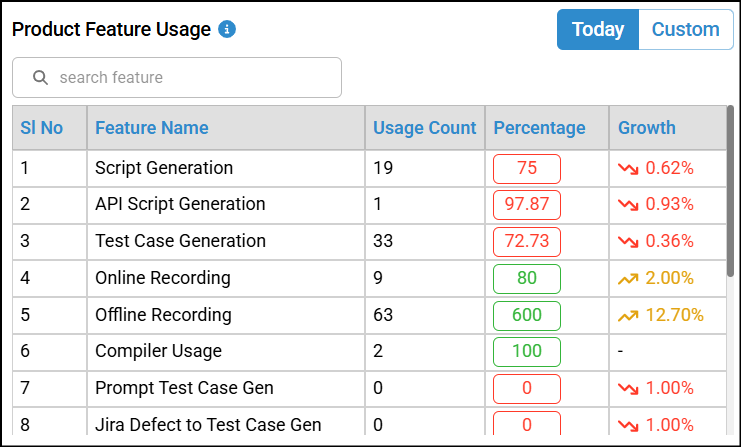
- Product Feature Usage allows you to view how your users are utilizing each feature. The table displays both the usage count and the percentage of usage. You can also filter the data by Today or a custom time range.
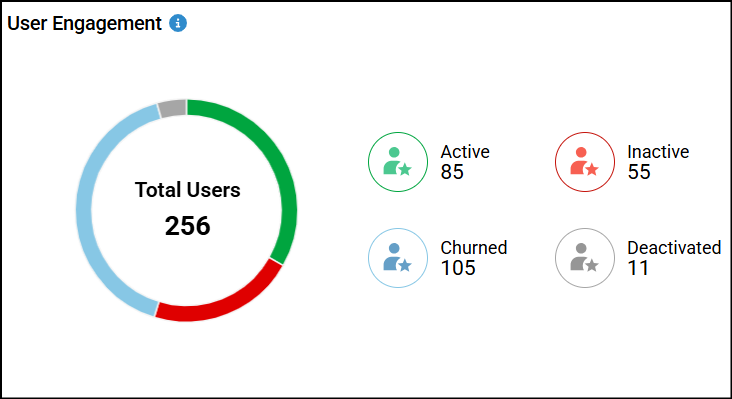
- User Engagement shows the total number of users, along with a breakdown of Active, Inactive, Churned, and Deactivated users.
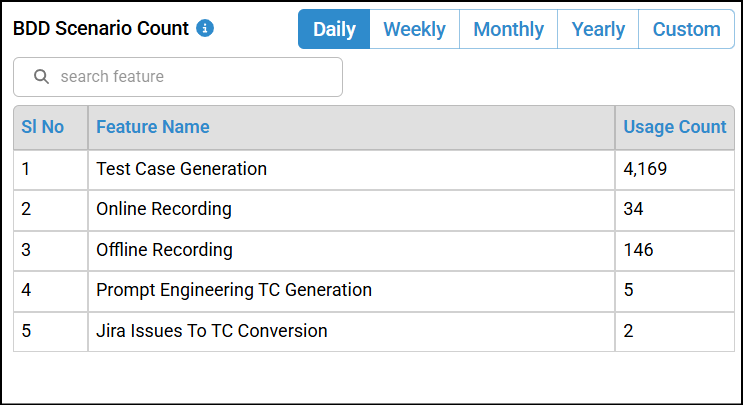
- BDD Scenario Count allows you to view a table showing the number of scenarios your users created using different methods such as online recording, offline recording, auto test case generation, prompt engineering, Jira issues to test case generation, and feature file to script conversion. You can also filter the data by daily, weekly, monthly, yearly, or custom time ranges.
2.2 Users
- In the Users tab, at the top, you can view key details such as total departments, total projects, total users, storage, subscription type, and validity. You can also filter by business unit, edit the customer name by clicking the Edit icon next to it.

- You can view all users under this admin in the table. It includes details such as feature score, number of projects created, number of test cases generated, user registration status, created date, feature usage count, user status, and last active time.
- You can also search a user using the search field.
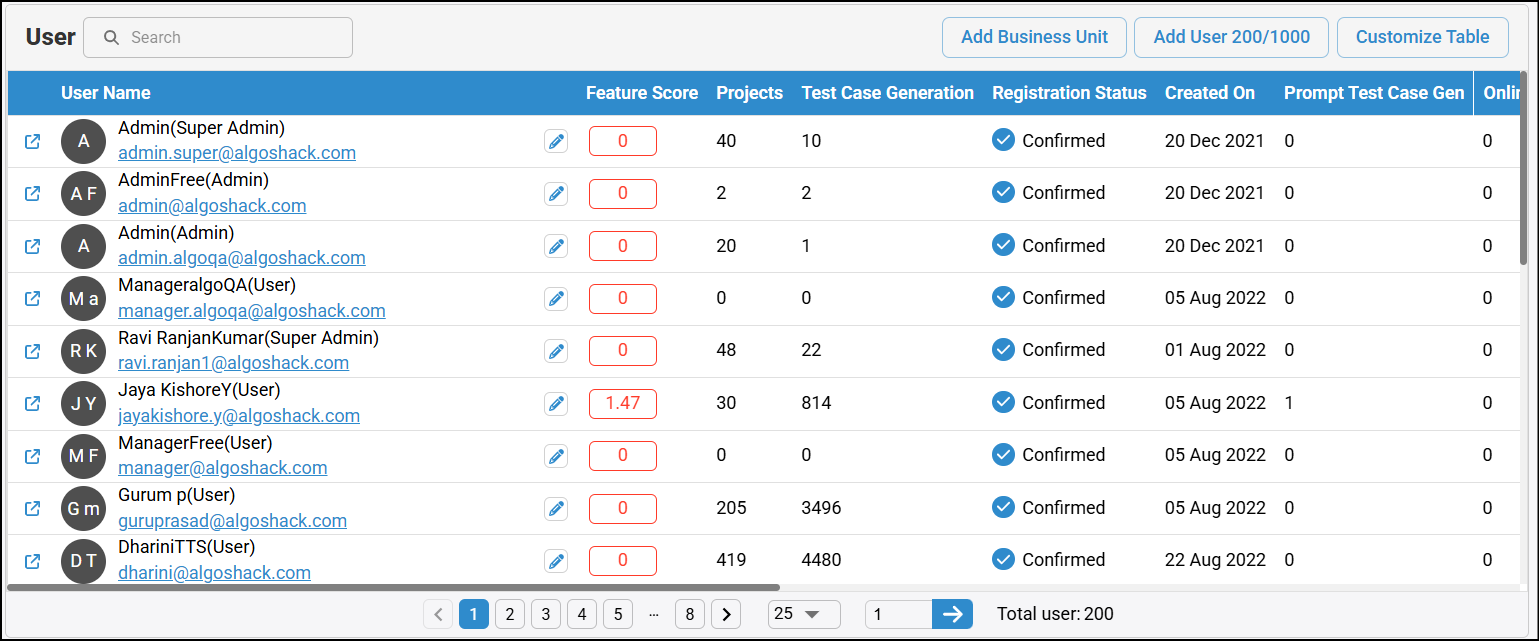
- You can also customize the table by clicking Customize Table and selecting the checkboxes for the fields you want to display.
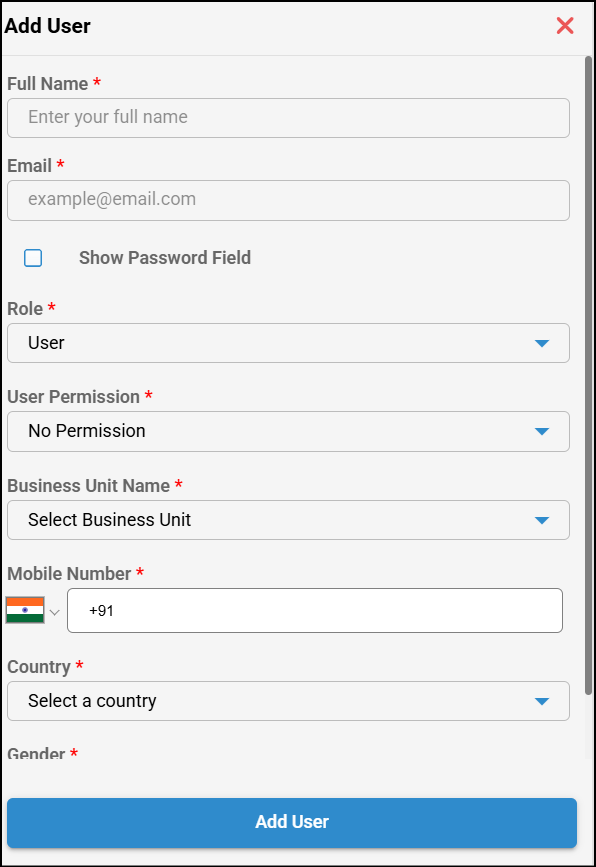
- You can also add users by clicking Add User (200/100). Enter the required details such as name, email ID, role, user permissions, business unit, mobile number, country, and gender, then click Add User.
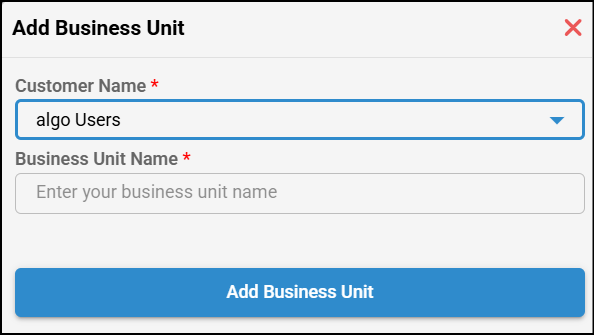
- You can add a business unit by clicking on Add Business Unit. Select the customer name, enter the business unit name, and then click Add Business Unit.
- By clicking the User Overview icon next to a user, the admin can view the usage details of that individual user. To know more about User Insights for Users, refer Usage Insights For Users.
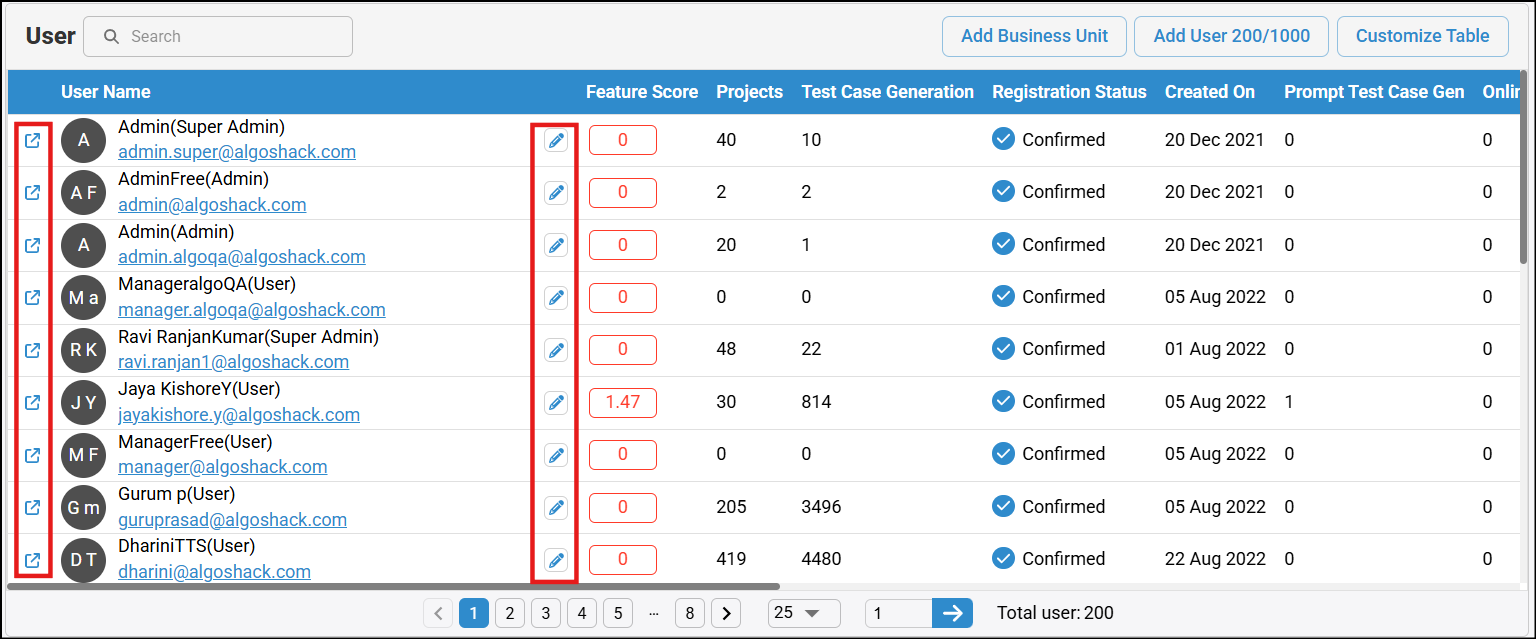
- By clicking the Edit icon next to a user’s details, you can update the user information.
Was this article helpful?
That’s Great!
Thank you for your feedback
Sorry! We couldn't be helpful
Thank you for your feedback
Feedback sent
We appreciate your effort and will try to fix the article