TABLE OF CONTENTS
2. How to Generate Test Cases?
1. Overview
Once the scenario is recorded using Record Scenario feature, the next step is generating test cases.
Test cases are generated with BDD format in Gherkin language (GWT).
Example of Feature File generated in BDD format:
Given I have access to an application When I selected a Button in file And I selected New File in file Then verify New page is displayed in file |
The generated test cases will be stored in the Test Cases.
You can generate test cases using Generate TestCase button.
2. How to Generate Test Cases?
To generate a test case, perform the following:
- In the Test Design screen after profiling, click Generate Testcase button, To know more about profiling check Profiling.
- A Test Case Generation pop-up will appear, allowing you to monitor the progress. You can stop the generation at any time by clicking Stop Generation. If needed, you may minimize the pop-up by clicking Minimize, and restore it by clicking Maximize.
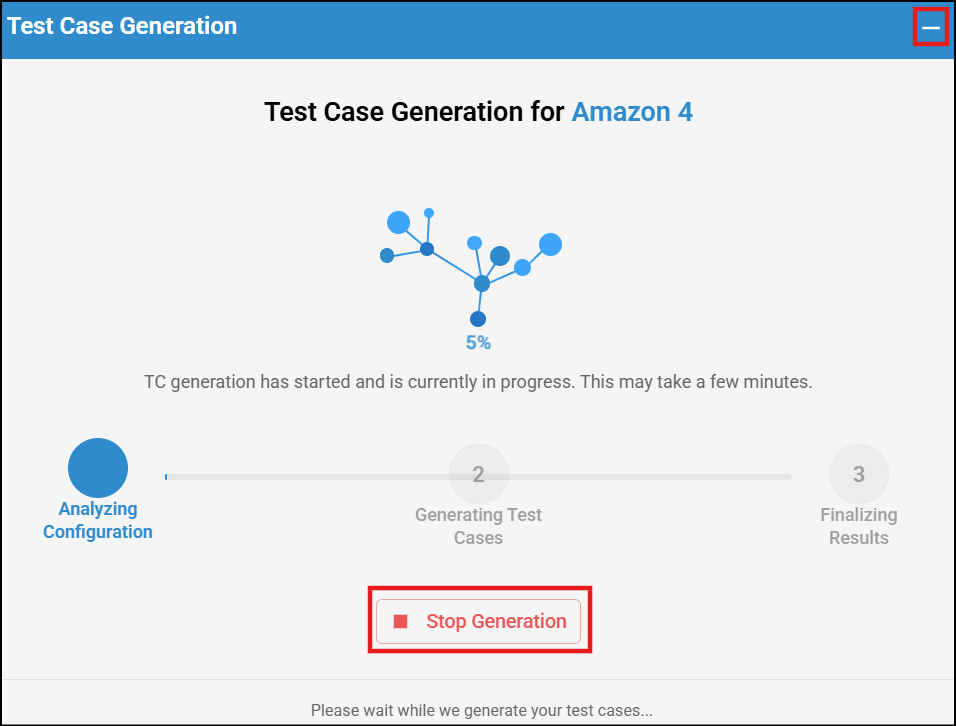
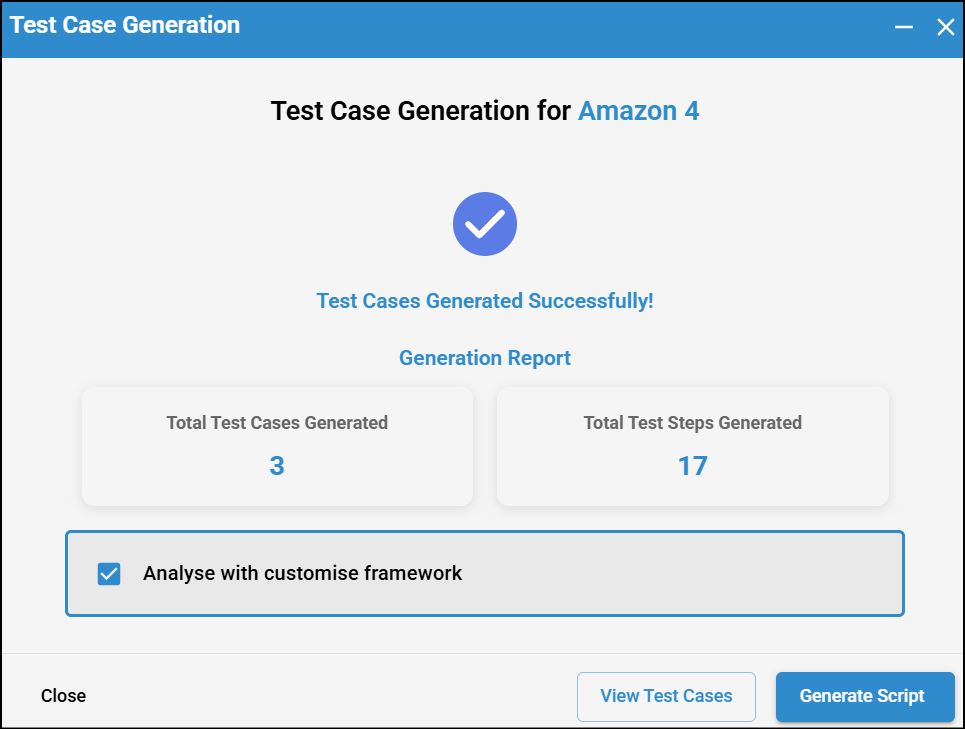
- Test cases are generated quickly.
- The generated test cases are stored in the Test Cases. This folder includes a spreadsheet which contains GWT steps in XLSX format and Feature File in TXT format.
- Test Case Generation might fail for the following reasons:
If no nodes are created.
If Scenarios are not created, see Test Case Generation Issues.
- You can download the test cases and delete them using the respective buttons. By clicking the 'More' icon (three dots), you can access De-duplication and Scenario Quality Analysis. To learn more about them, click on De-duplication and Scenario Quality Analysis.

- You can use the filter options to refine results by selecting time ranges such as Today, Last Week, or a Custom range and the user who generated the test cases using generated by dropdown.
Note: Test data will have indexing when different test data for the same controls is provided. This indexing is provided for the following scenarios:
When the same control is used multiple times within a scenario.
When duplicate controls from different features/nodes are used in a scenario.
When duplicate alias names are provided in a scenario
The indexing will start from 0 ( ex: wait, wait1, wait2...)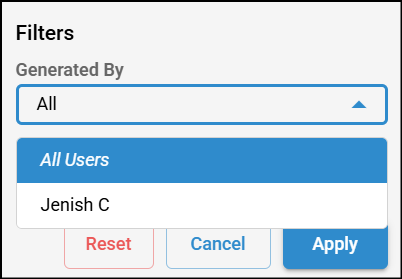
- You can click the 'Generate' button to generate scripts. In script generation screen all the files will be selected by default, you can unselect and select as needed, click Generate Scripts for scripts to be generated.
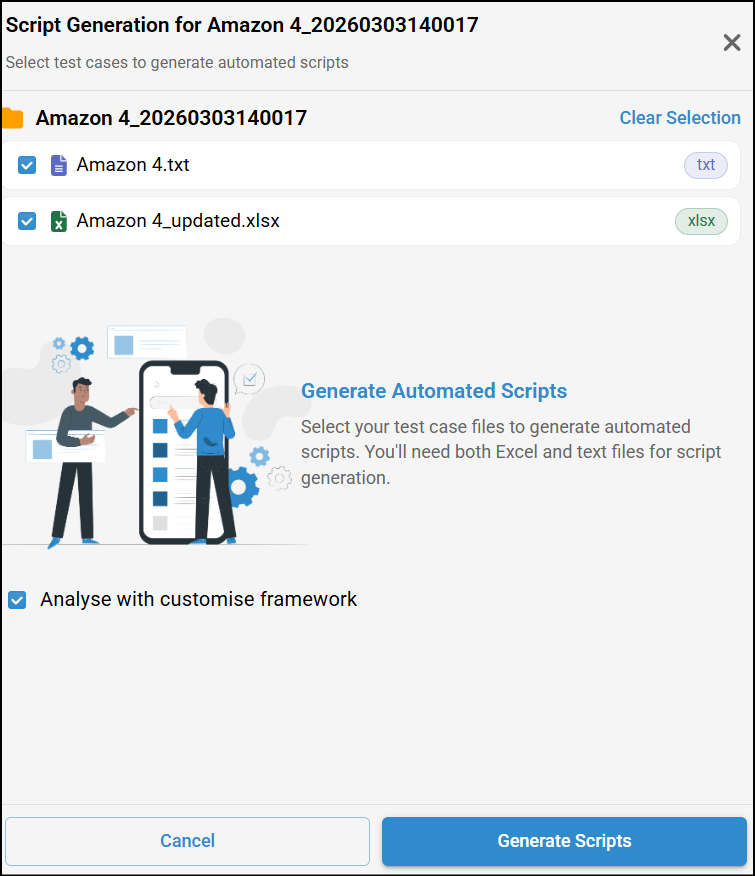
Note that .xls file supports storage up to 7000 rows (GWT lines) of data. You can modify and save the lines, download the file without any issues. - After generating the scripts, you can download, view, compile, and execute them.
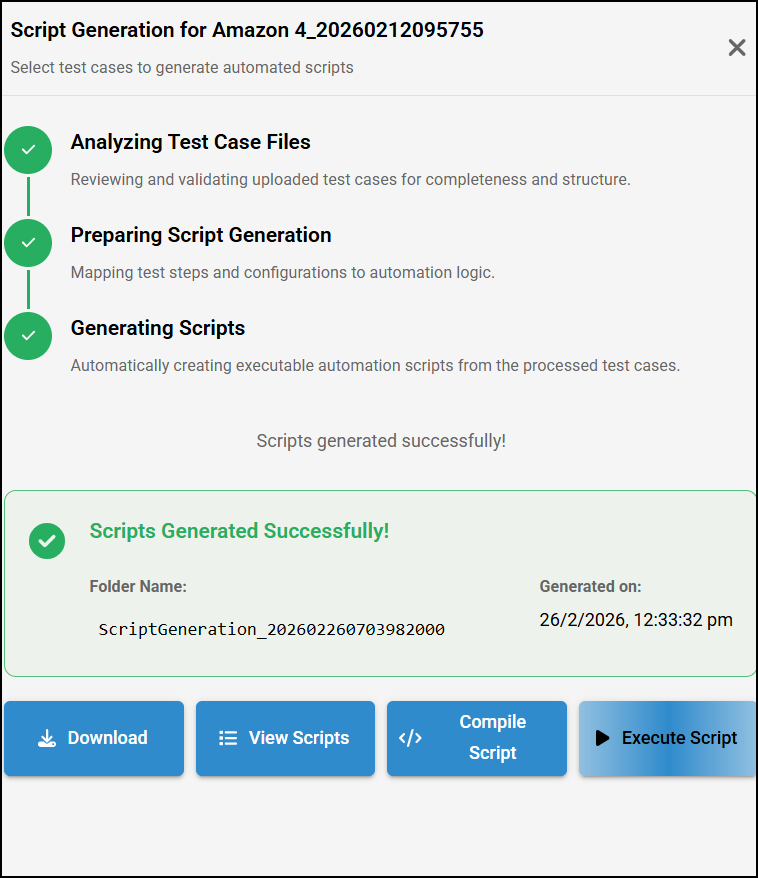
- Check How to Automate Web applications to know more about compilation and to view scripts.
- You can use the filter options to refine results by selecting time ranges such as Today, Last Week, or a Custom range. Additionally, you can filter by language, framework, and the user who generated the scripts using their respective dropdowns. You can also filter based on compilation status, including Compiled, Not Compiled, Failed, Pending, and Passed.
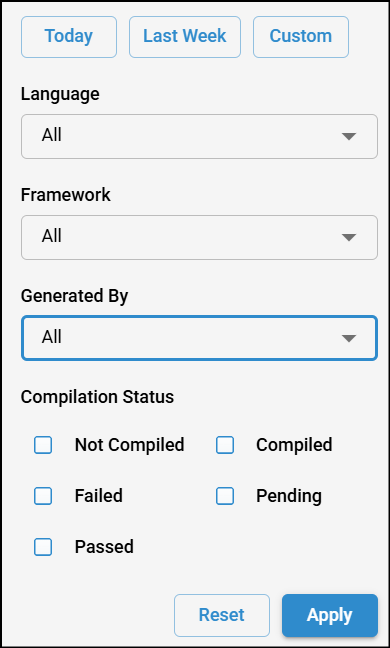
- Check Scripts Execution in algoQA to know more about execution.
- You can rename the generated script folder and download it.
- Hover rover script generated folder and edit icon will be visible.

- Click on edit icon and edit the name and click on tick on tick more icon to save it


Was this article helpful?
That’s Great!
Thank you for your feedback
Sorry! We couldn't be helpful
Thank you for your feedback
Feedback sent
We appreciate your effort and will try to fix the article