TABLE OF CONTENTS
2. How to Execute Scripts in algoQA from Test Scripts Page
3. How to Execute Scripts in algoQA from Test Scripts Page once the Script is Generated
1. Overview
This article provides detailed information on the process to be followed for executing scripts in algoQA. You can execute scripts directly from the Test Scripts page. Scripts can run in Headless or GUI mode, with options to upload reports to dashboard, use custom tags to execute particular scenario from the script, enable auto-healing. Execution progress and results can be monitored on the Script Execution page, and detailed summaries and logs are available after completion.
Note: This feature is currently available only for Java Selenium, Python Selenium and TypeScript Playwright frameworks.
Note: This feature is currently disabled for all users. Please reach out to the sales team sales-team@algoshack.com or raise a ticket to have it enabled.
2. How to Execute Scripts in algoQA from Test Scripts Page
- Once the script has been generated, a play icon button will be available next to the script on the Test Scripts page. Click the icon to execute the script.

- The Script Execution Process pop-up window will appear.
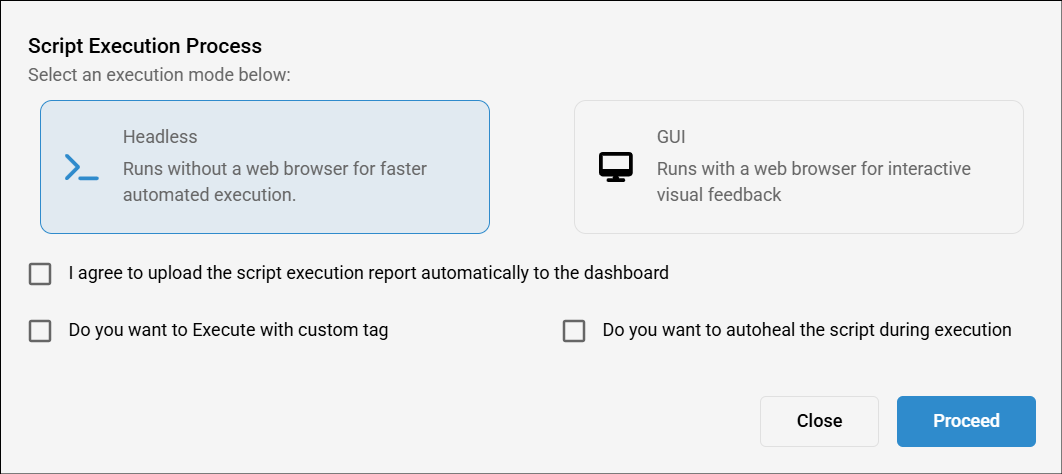
- Choose whether you want to execute the script in Headless mode or GUI mode. In Headless mode, the execution runs in the command prompt without displaying the execution UI. When GUI mode is selected then you can view the execution preview with command prompt and you can also view them in full screen and minimize back if you don't want to see in full screen.

- If you want to upload the execution report to the dashboard, select the I agree to upload the script execution report automatically to the dashboard checkbox and enter the batch name and test suite name in the respective fields.
Note: To understand how the dashboard looks and functions after uploading the execution report, check Dashboard.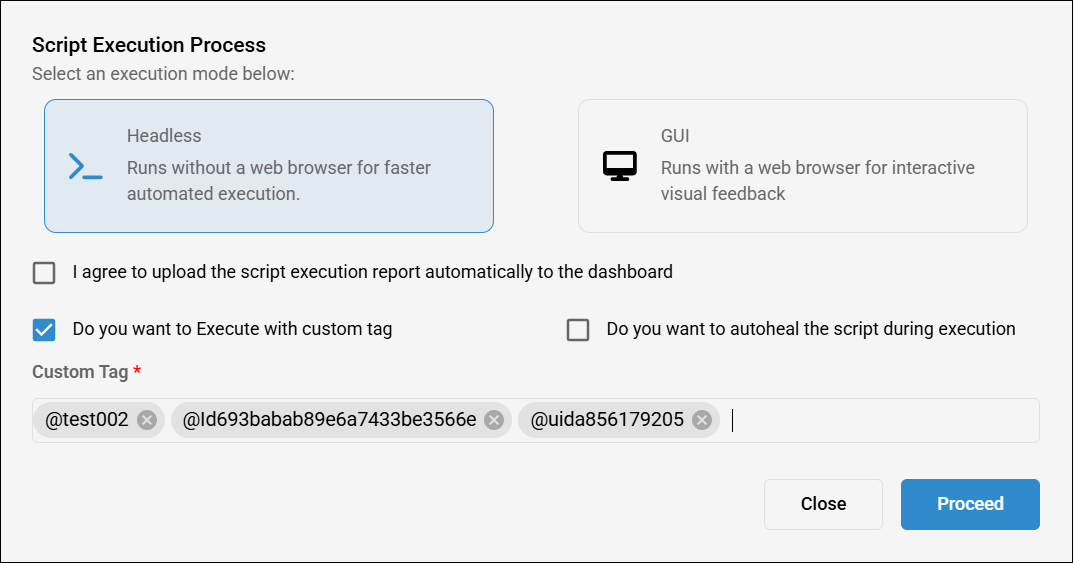
- If you want to execute the script with a custom tag, select the “Do you want to execute with custom tag” checkbox and enter the tags.
- To enter tags, Type a tag and press Enter, Comma or Space to add one or more tags which will run the test case associated with that particular tag.
Note: The option to execute scripts using a custom tag is currently available only for the Java and Python Selenium frameworks. - If automatic autohealing is required during execution, enable the Do you want to autoheal the script during execution checkbox.
Note: The auto-healing feature during script execution is currently supported only in the Java Selenium framework. - After selecting the required fields, click Proceed.
- The Script Execution page will appear, where you can also view the execution pipeline with live execution preview. From this page, you can see all previously executed scripts.
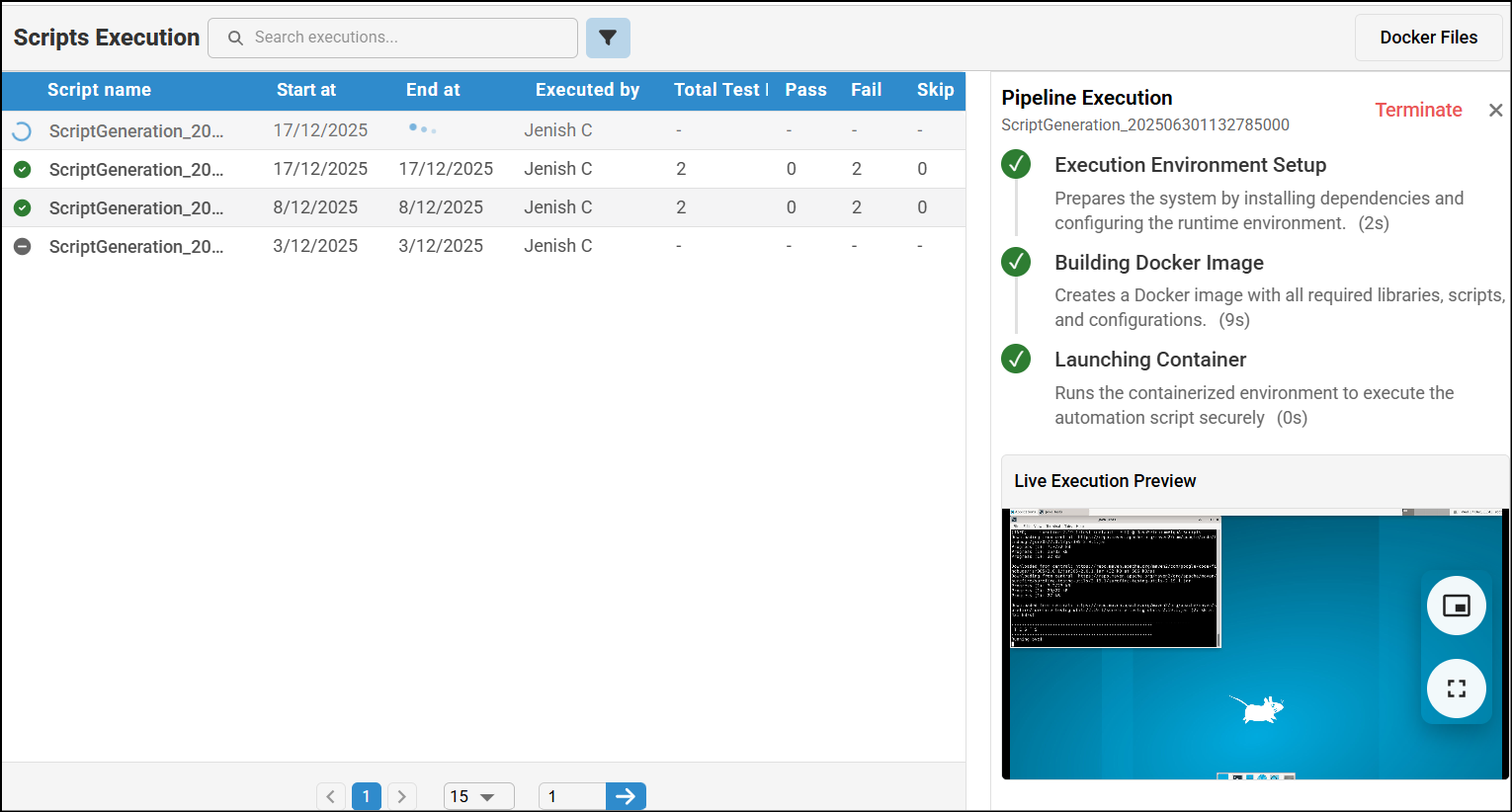
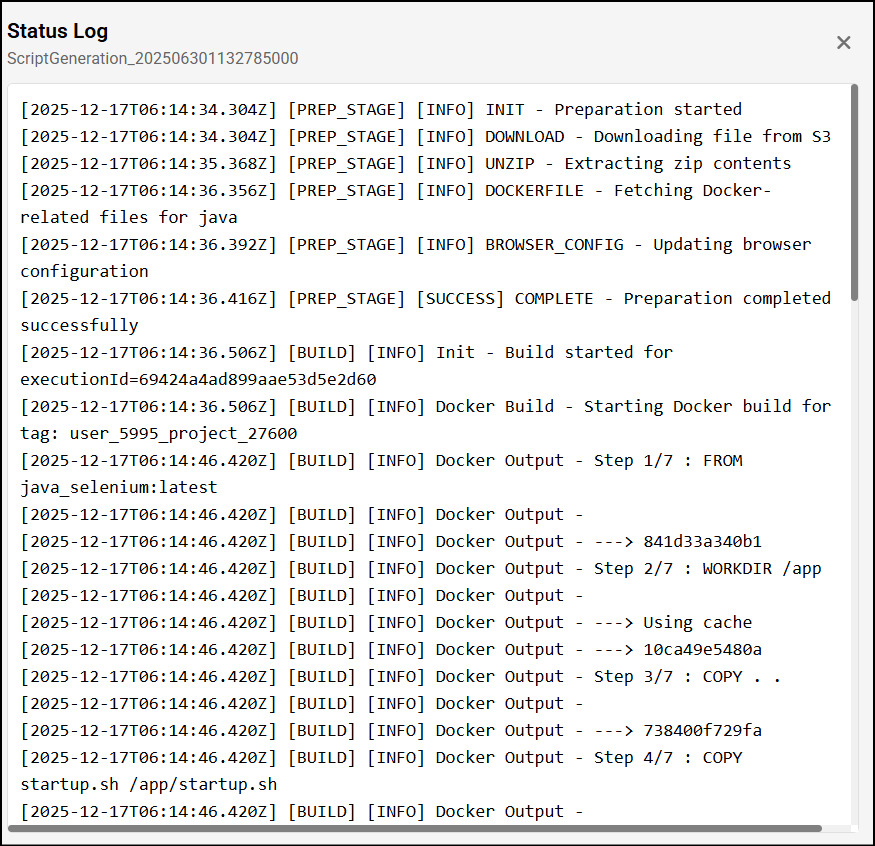
- A green tick mark indicates that the script has been executed. Click on it to view the status log.
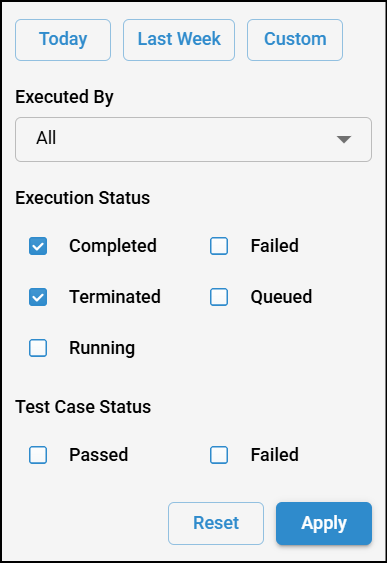
- You can use the filter options in Script Execution to refine results based on your needs. Select a time range such as Today, Last Week, or a Custom range. You can also filter by the user from the “Executed By” dropdown. Additionally, apply filters based on Execution Status, including Completed, Failed, Terminated, Queued, and Running. For more granular results, you can filter by Test Case Status, such as Passed or Failed. Use the Apply button to enforce filters or Reset to clear them.
- If you had choose GUI mode then you can view the execution preview with command prompt and you can also view them in full screen and minimize back if you don't want to see in full screen.
- When Headless mode is chosen, the execution runs in the command prompt without displaying the execution UI.
- After the script execution is complete, select the script to access the Execution Summary, Tests Summary, and Pipeline Summary details.
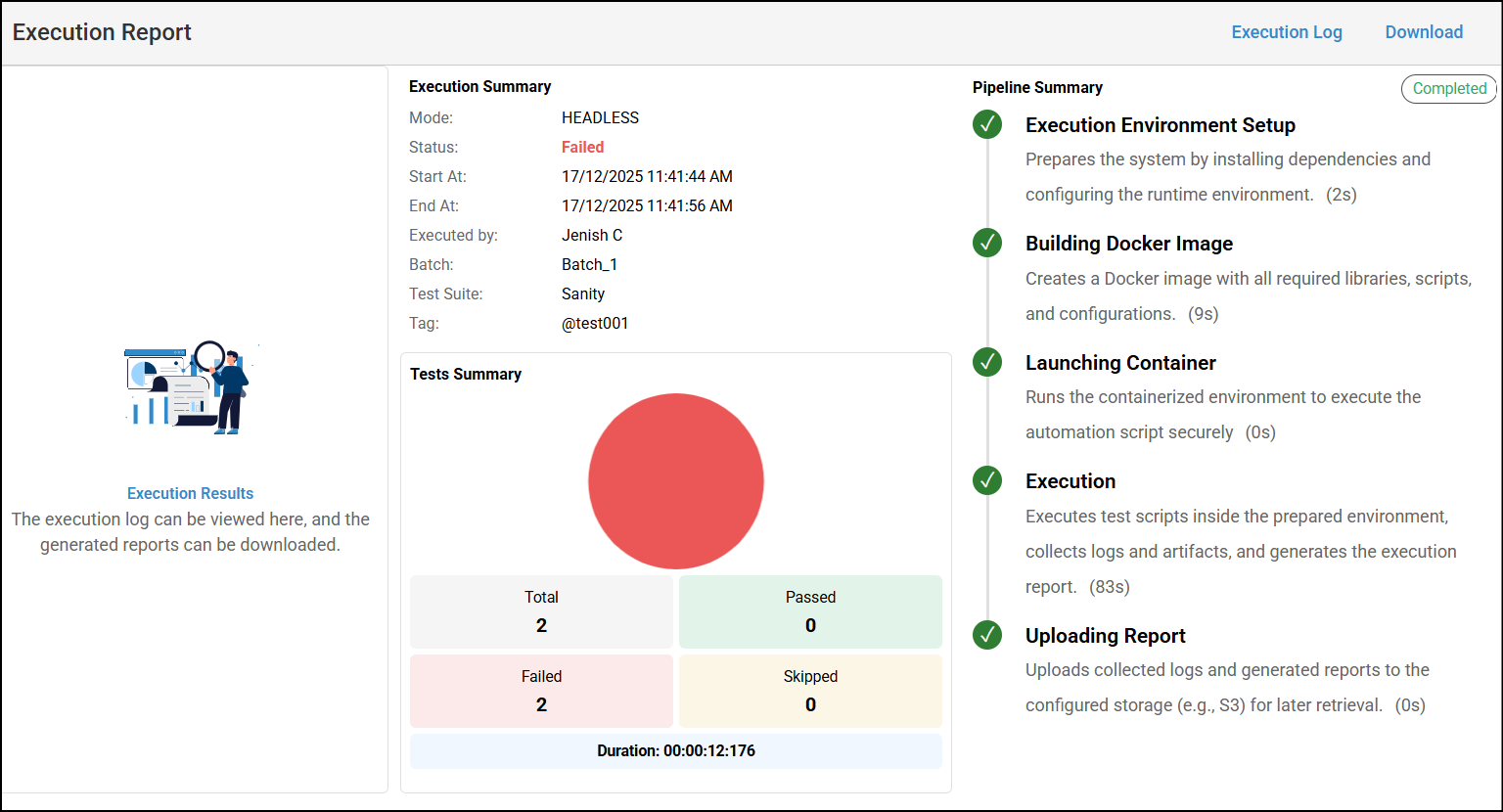
- The Execution Summary section displays key information about the script execution, including Execution Mode, Status, Start At, End At, Executed By, Batch, Test Suite, and Tag.
- The Tests Summary section provides an overview of the test results, including Total Tests, Passed, Failed, Skipped tests, and the Duration of execution.
- You can download the execution report by clicking Download and view the execution log by clicking Execution Log.
3. How to Execute Scripts in algoQA from Test Scripts Page once the Script is Generated
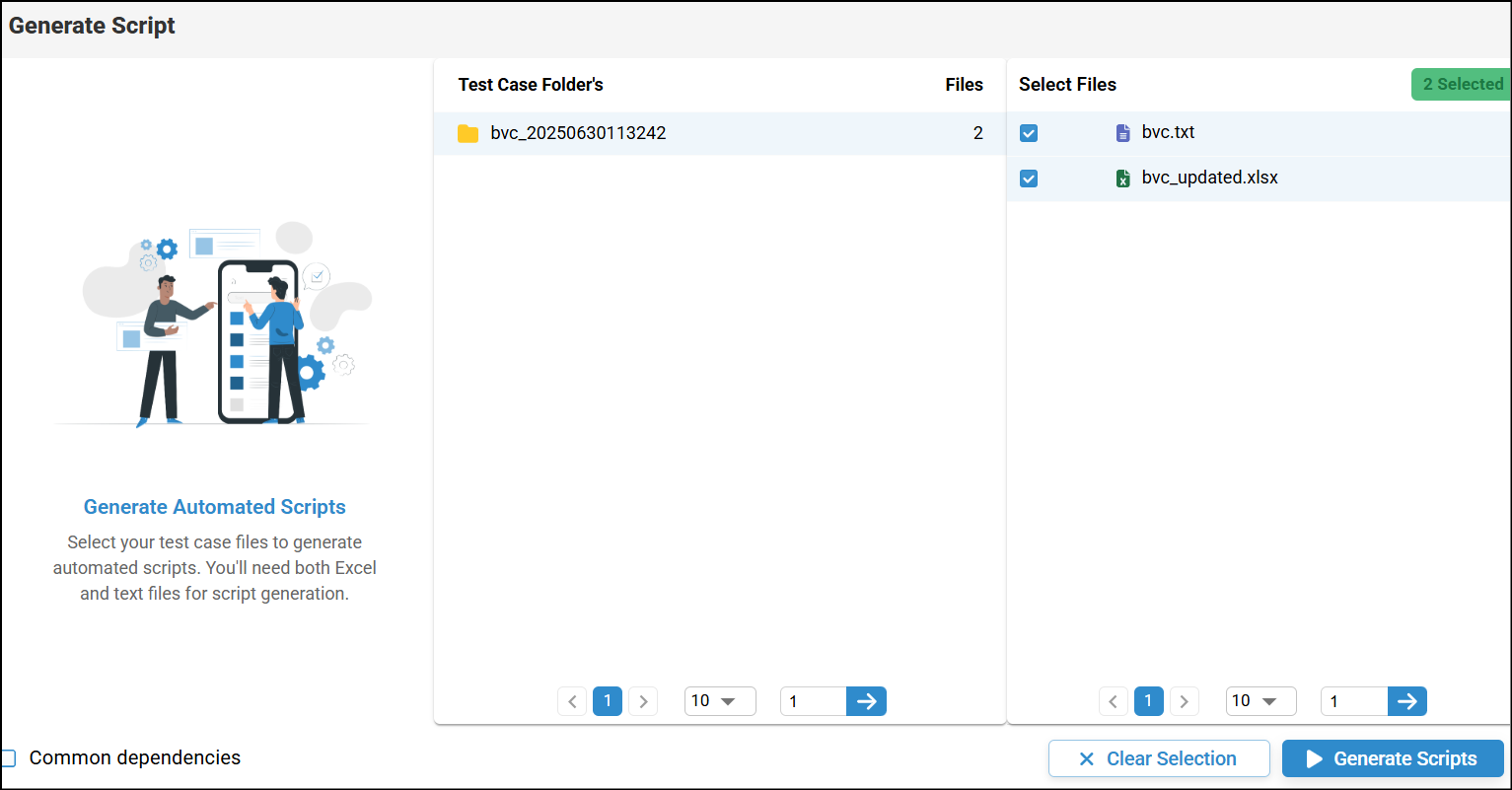
- In the Test Case Generation page, after the test cases are generated, click Generate Script.
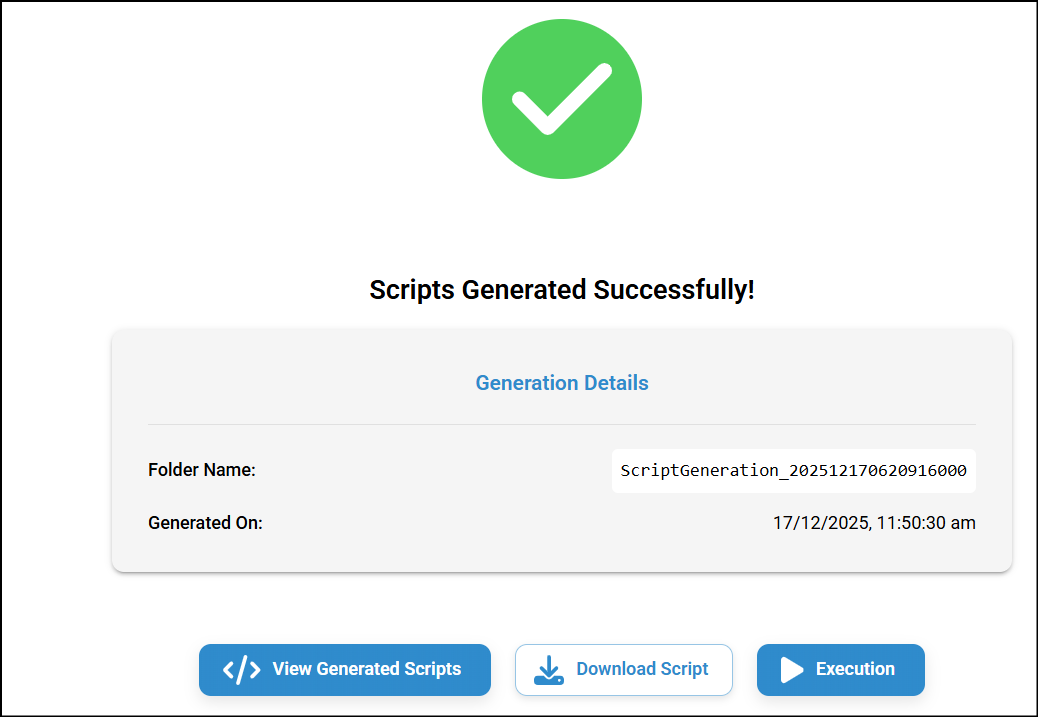
- The Script Generated Successfully message will appear. Once the script is generated, click the Execution button.
- Follow step no 2 to 17 from previous section
Was this article helpful?
That’s Great!
Thank you for your feedback
Sorry! We couldn't be helpful
Thank you for your feedback
Feedback sent
We appreciate your effort and will try to fix the article