TABLE OF CONTENTS
2. Accessing Custom Object Repository
1. Overview
This article provides detailed information on the Custom Object Repository feature and explains how to use it.
2. Accessing Custom Object Repository
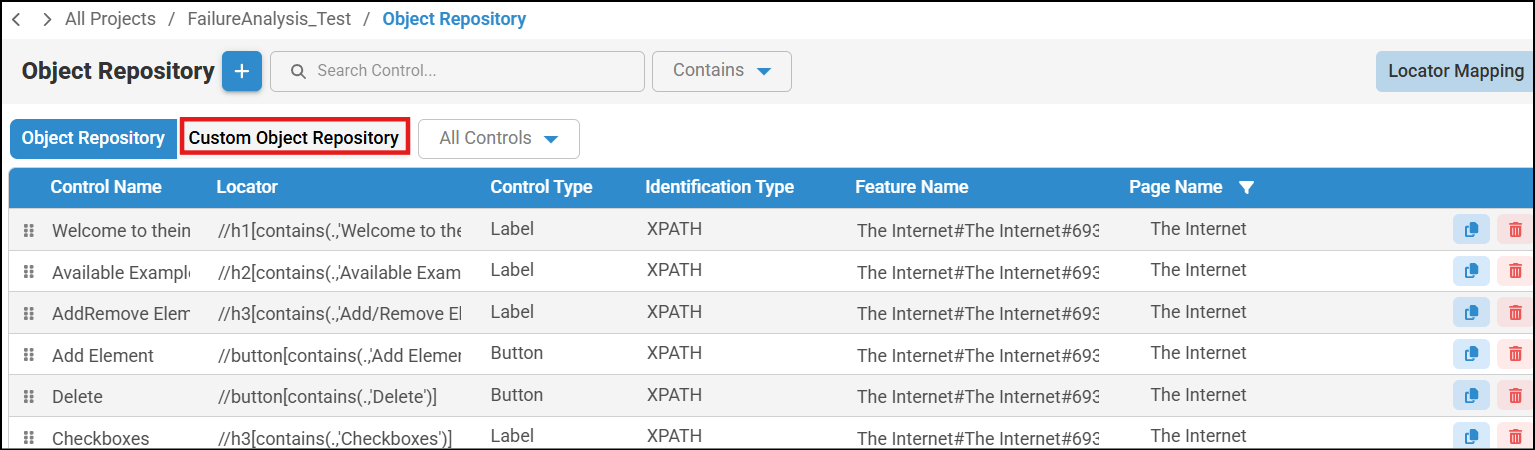
- To access Custom Object Repository, select a project and navigate to Object Repository in left pane.
- Click on Custom Object Repository.
3. Functionality Summary
The Custom Object Repository includes essential information, such as:
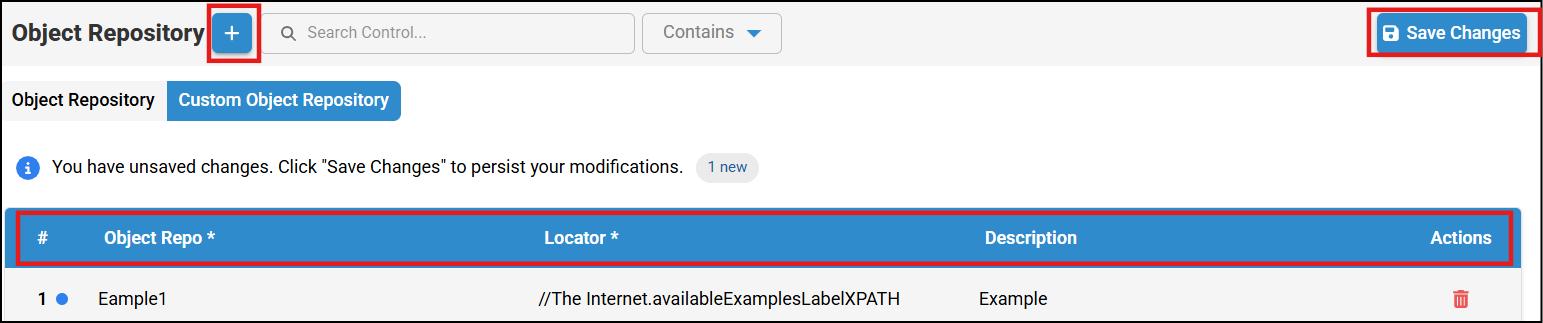
- Object Repo: Control Name, displaying all UI elements
- Locator: which contains XPath of controls
- Description: Description for that control
- Actions: Delete the control if it is not required in custom object repository

If any controls are required for the creation of a custom method, you can create them using the Custom Object Repository. To add a UI element (control), perform the following steps:
- To add a UI element (control), click the Add button.
- Enter the object name, locator, and description, then click Save Changes.
- The object will be added to the Custom Object Repository.
- When working with a large number of controls, you can use the filter and search options to quickly find a specific control. You can filter by Contains, Starts With, Ends With, or Equals, then enter the desired value in the search bar to view results based on the selected filter.
Was this article helpful?
That’s Great!
Thank you for your feedback
Sorry! We couldn't be helpful
Thank you for your feedback
Feedback sent
We appreciate your effort and will try to fix the article