TABLE OF CONTENTS
2. How to View Failure Analysis
1. Overview
The Failure Analysis view allows you to quickly review and analyze test failures for a selected batch. From the dashboard, you can see execution results, failure categories, and detailed information for failed test cases, helping you identify issues efficiently. The view also provides access to all test executions and supports exporting the results for reporting purposes.
2. How to View Failure Analysis
Note: To view the execution report in dashboard check Uploading the execution report into Dashboard section from Dashboard.
In dashboard under Tests Execution Summary and in batch execution summary table, click on a batch and By clicking on a batch, you can view the Total Unique Test Case Execution Summary, Failure Analysis Summary, failure Analysis, All Test Executions, Failure Executions and Slowest Executions.
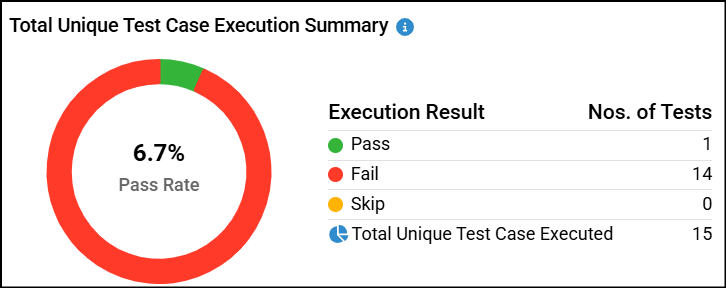
Under Total Unique Test Case Execution Summary, you can view:
- Pass Rate (%): The percentage of test cases that passed.
- Execution Results: The number of test cases that Passed, Failed, or Skipped.
- Total Unique Test Cases Executed: The total number of unique test cases that were executed.
 Under Failure Analysis Summary, you can view the number of test cases that failed in each category within a batch.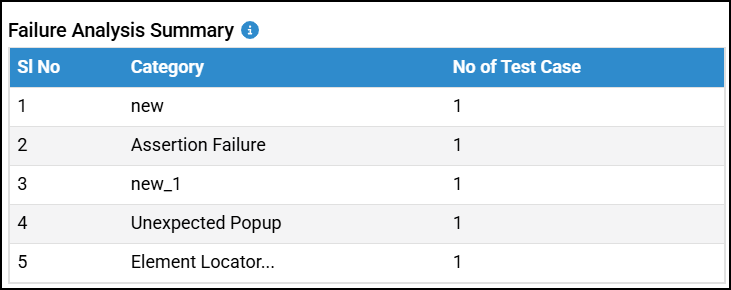
Under Failure Analysis, you can view the details of each test case within the selected batch. Failed test cases are grouped by failure category and listed in the Category List. Selecting a category displays all failed test cases associated with that category.
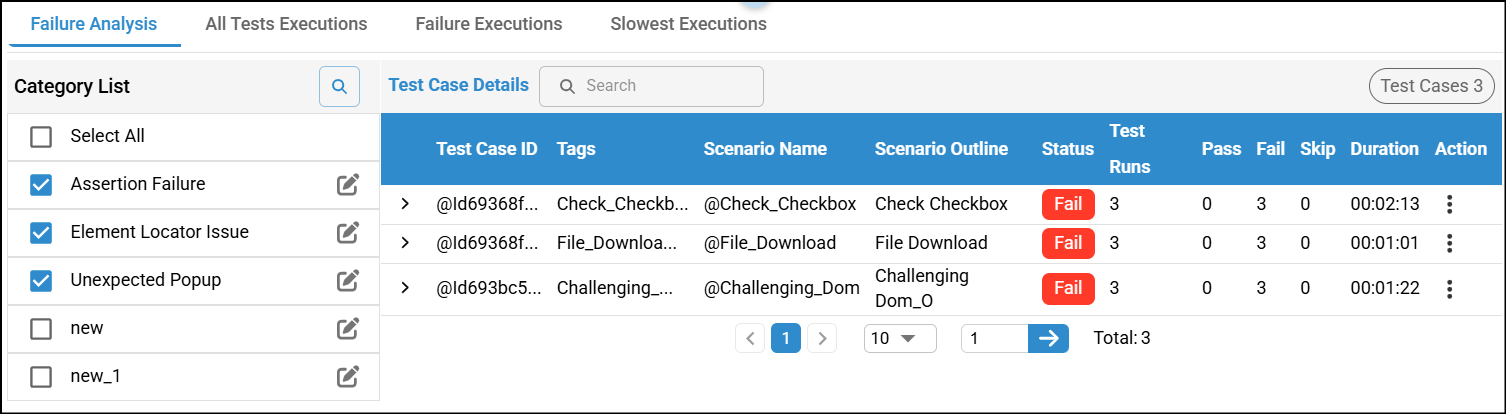 You can also edit a category name if it is not relevant by clicking the Edit icon next to the category. If a test case requires a new category, click the More icon (three dots) and add a new category for that test case.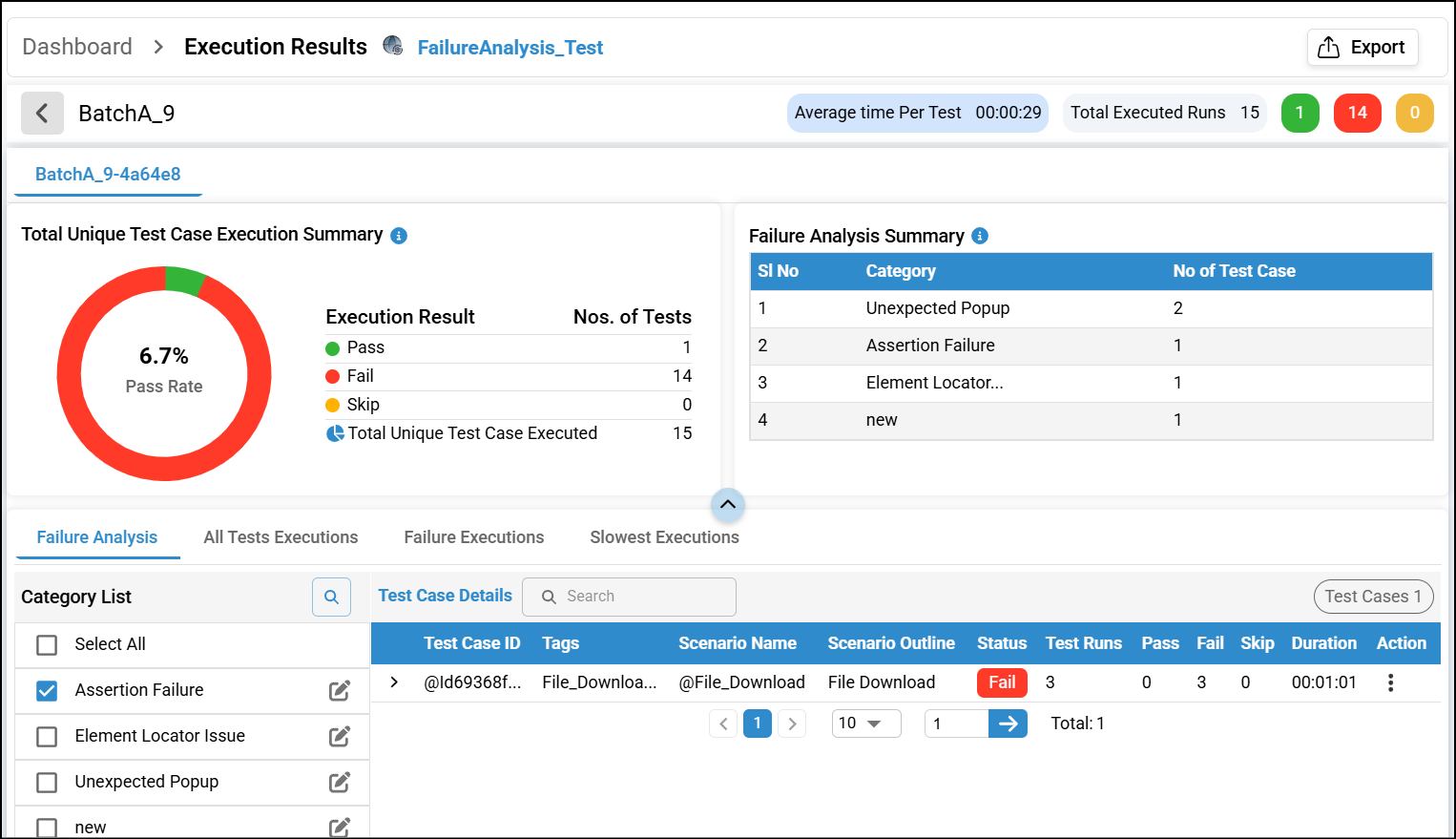
By clicking on a test case, you can view the failure reason, number of test runs, and details such as scenario name, tags and scenario outline. You can also use the Filter option to filter test cases by failure reason. If a test case has multiple failure reasons, all applicable reasons will be displayed.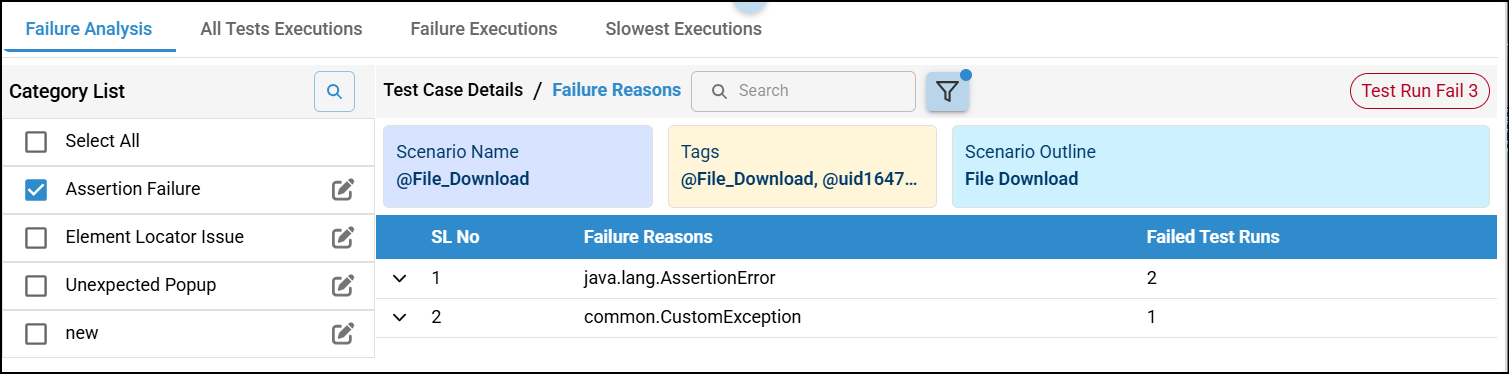
By clicking on a failure reason, the corresponding test case ID is displayed. Selecting the Test Case ID opens the detailed failure information, including a last screenshot of a failed testcase highlighting the exact point of failure. Users can also add suggestions to help improve or resolve the issue. Click on the image to enlarge it and view it in a maximized mode.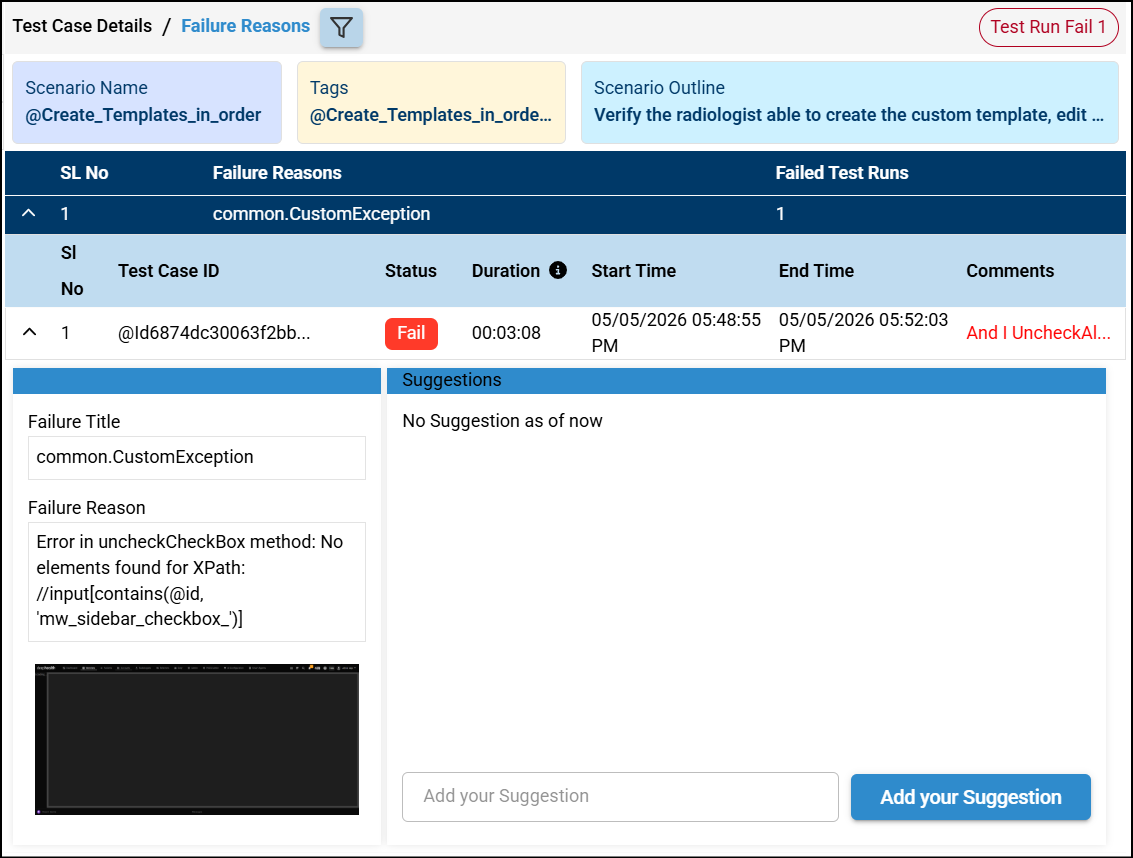
Under All Tests Executions, you can view all the test executions under the selected batch.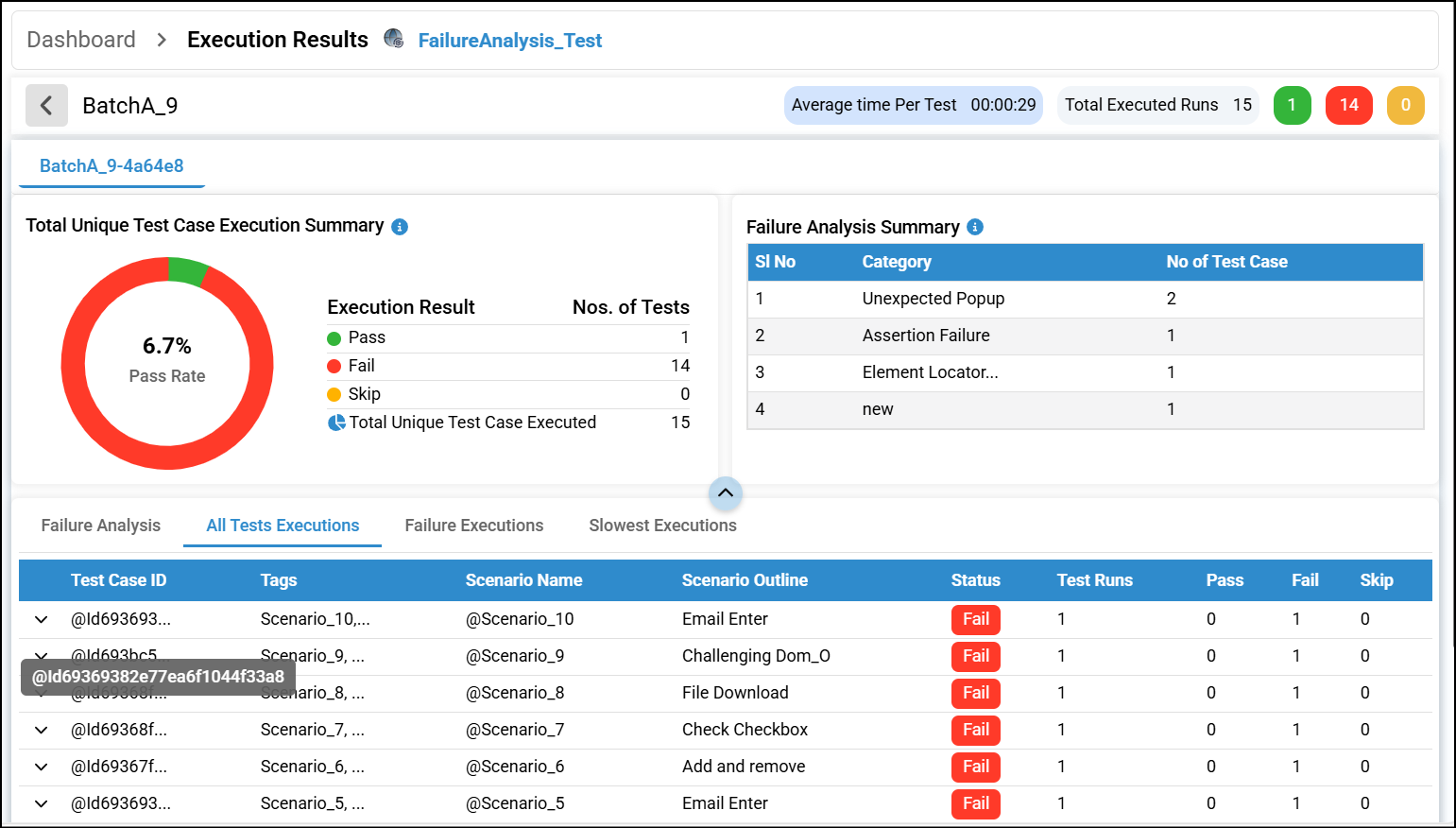
By clicking the down arrow of the test case, you can view the result of every runs of that particular test case, see the reason for any failures along with screenshot, and provide suggestions if needed.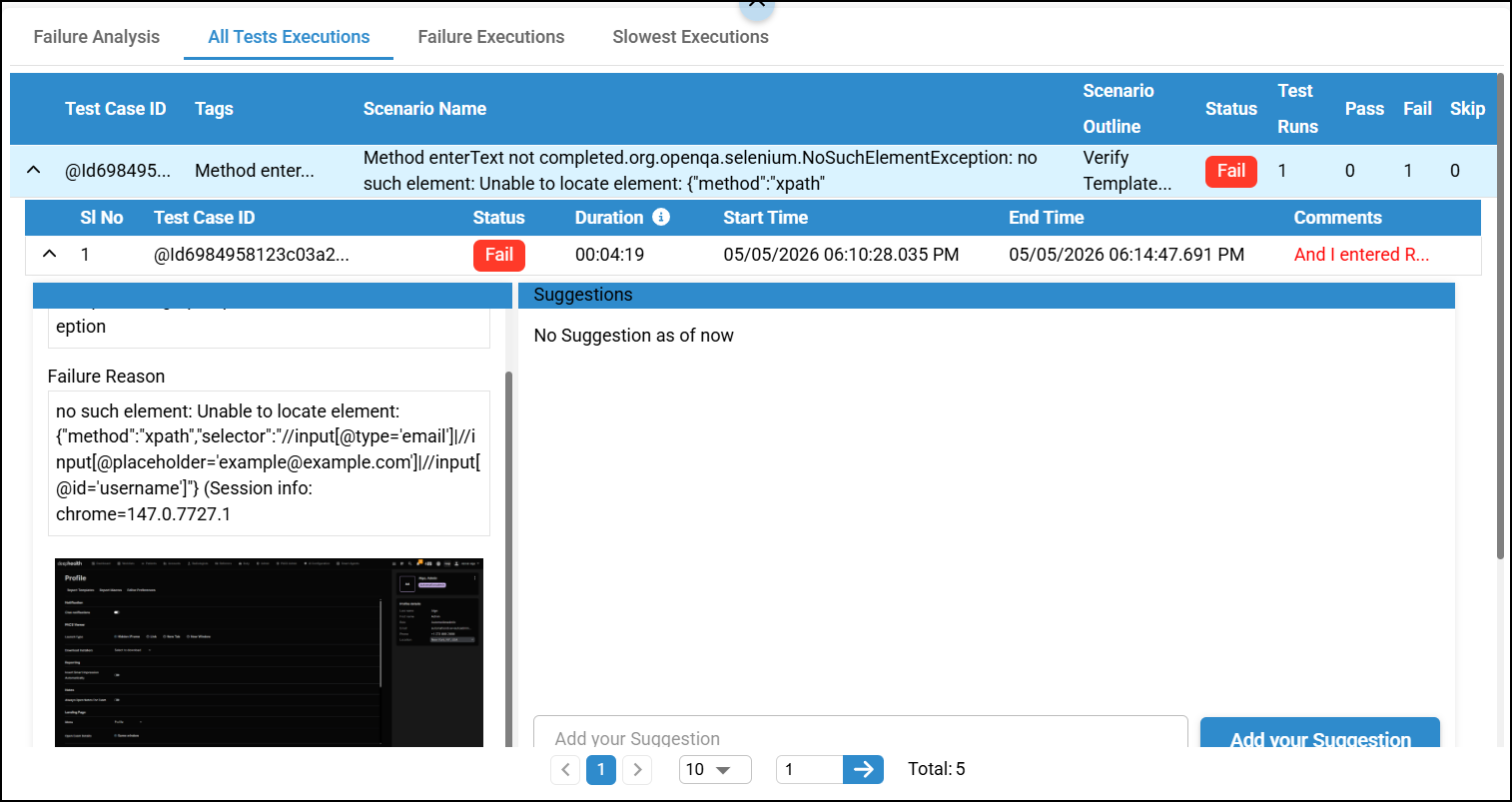
Under Failure Executions, you can view the Failed test executions under the selected batch.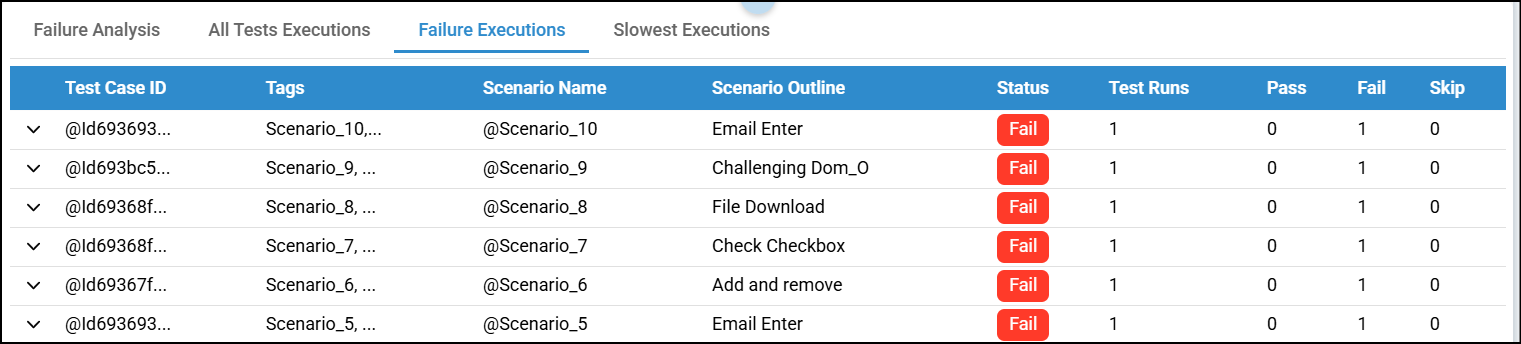
Under Slowest Executions, you can view the slowest test executions under the selected batch.
You can use the expand arrow to enlarge the table for a better view, which will hide the Total Unique Test Case Execution Summary and Failure Analysis Summary. Click the collapse arrow to view the summaries again.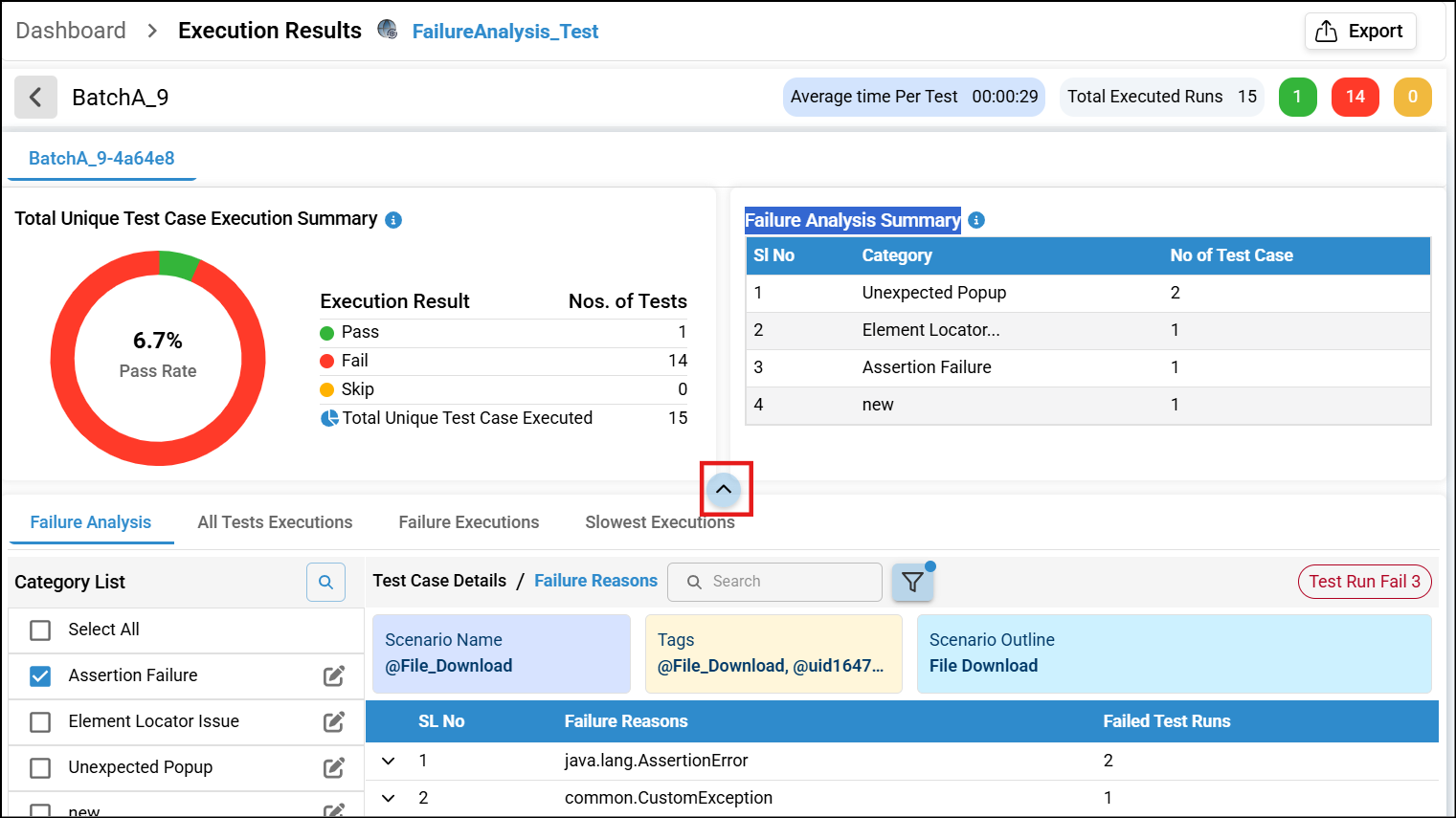
An Export option is available for Failure Analysis in the top-right corner. The details of the selected batch can be exported in Excel or HTML format.
- HTML Export: By default, Charts & Graphs, All Test Executions, and Failure Analysis are selected.
- Additional Options: You can also choose Failure Executions and Slowest Executions.
Select or deselect the desired options and click Download to export.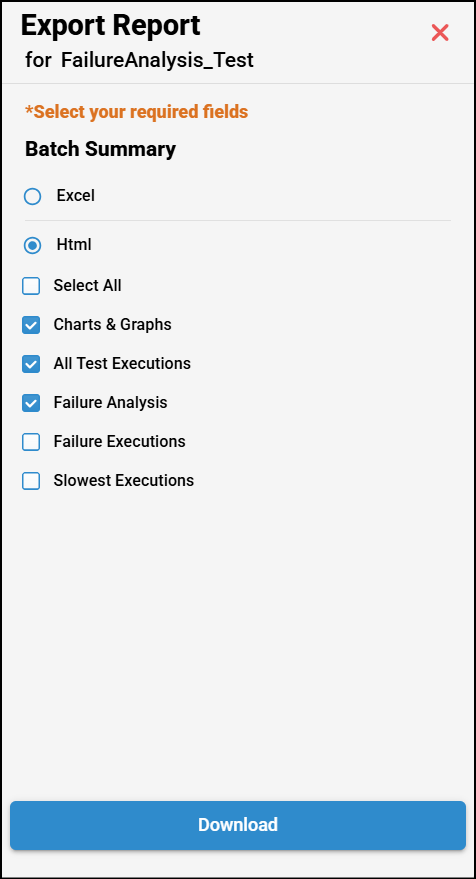
Was this article helpful?
That’s Great!
Thank you for your feedback
Sorry! We couldn't be helpful
Thank you for your feedback
Feedback sent
We appreciate your effort and will try to fix the article