TABLE OF CONTENTS
2. Summary Description of Project Settings Page
3. Summary Description of Feature File Settings Page
4. Summary Business Rule Settings Page
5. Summary Description of Script Generation Settings Page
6. Summary Description of Access Settings Page
1. Overview
The Settings page allows you to configure and manage settings for your project, including Project Information, Backup & Restore, and Feature File Settings. Select a project and navigate to settings in left pane.
2. Summary Description of Project Settings Page
Navigate to Settings > Configuration Settings to view the project settings. The following table provides a summary of Project Settings fields:
| Field | Description |
| Project Name | Displays the Project name entered during Project creation is displayed. |
| Automation Type | Displays Automation type entered during creation of the project. By default, this textbox is not editable. |
| API Type | Displays the API type, you can select either REST API or SOAP API. |
The following table provides a summary of Backup and Restore Settings Fields:
| Field | Description |
| Daily Auto Backup | Auto-backup is enabled by default for all projects, and the auto-backup checkbox is disabled on the project settings page, if the project is assigned to you, these fields will not be available. |
3. Summary Description of Feature File Settings Page
Navigate to Settings > Configuration Settings to view the Feature File settings, available below the project settings.
The following table provides a summary of Feature File Settings Fields:
| Field | Description |
| Group By Module | Check this check box to generate a separate Feature file, folder structure and update. For more information, see Generating separate Feature File in separate folder. |
| Remove Default Tags | Check this check box to Remove Default Tags from the generated Feature file and update, if you choose to add custom tags. Following screenshot represents the original Feature File without this option being unchecked: 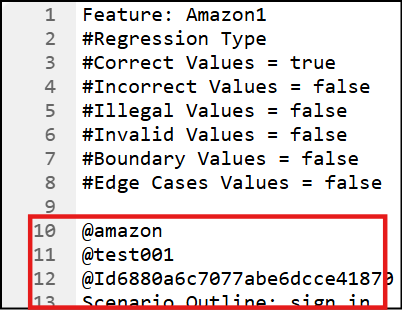 Following screenshot represents the Feature File with the option being checked: 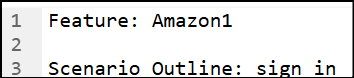 Note: When the Remove Default Tags checkbox is enabled, a warning is displayed indicating that removing the default tag will prevent the report from appearing on the Dashboard, Smart Ordering, and Auto Healing during report upload. 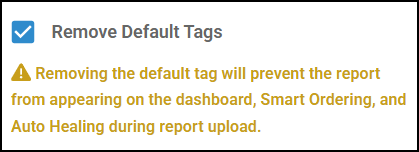 |
| Data Decoupling | Check this check box and update to generate separate YAML file in the Test cases Folder. To access TestData.Yml file, navigate to the Test Cases, expand the appropriate folder to view the YAML file.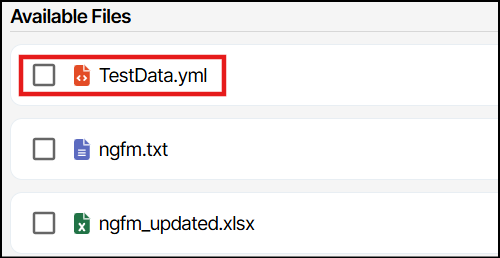 |
| Hide Feature | Check this check box and update to hide all the features created in a scenario so that it will not reflect in the generated Feature File. |
| Hide Control | Check this check box and update to hide all the UI elements created in a scenario so that it will not reflect in the generated Feature File. |
| Scenario Input | You can add input for the GWT line, which will be automatically applied across the project. |
4. Summary Business Rule Settings Page
Navigate to Settings > Business Rule Settings to view the Business Rule Settings screen.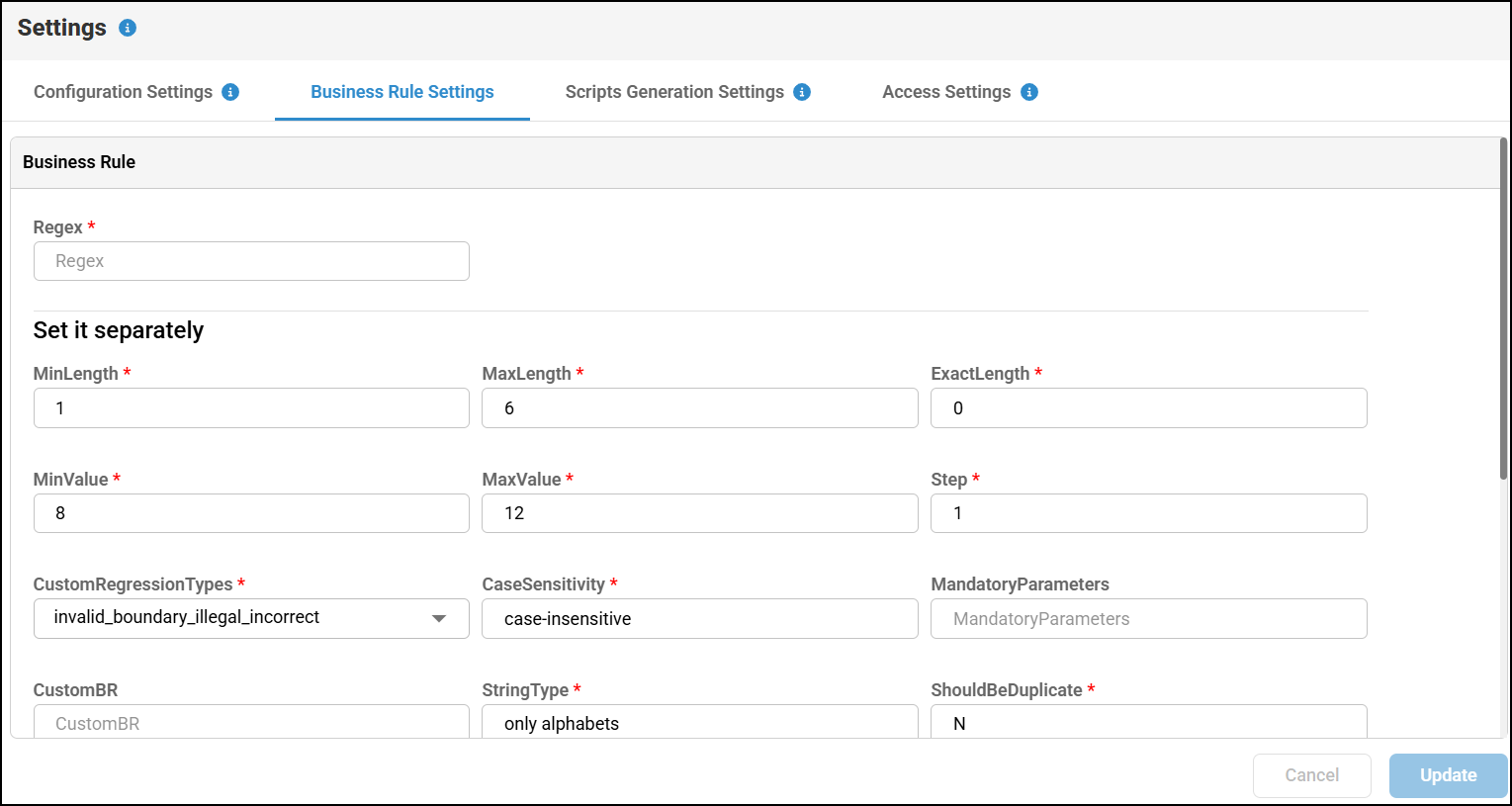
Business Rules contains parameters. Let us understand the parameters in Business Rules.
| Parameters | Description |
| Regex | Regex patterns are used to search for specific types of information within text. They help define rules for matching certain patterns, such as email addresses and phone numbers. For more information on Regex Patterns, see Troubleshooting guide. |
| minLen, maxLen and exactLen | minLen, maxLen and exactLen are the parameters used to set the minimum, maximum and exact length of data to be generated and applicable only for string data. |
| minVal and maxVal | These parameters ensure numeric inputs stay within the defined range and follow the specified step. minVal and maxVal are used to define the minimum and maximum value of the textbox to be accepted. The step is used to generate the boundary values for minimum and maximum values. Select the Boundary values option in the Data Generation option. |
| Data Generation | By default, this option is set to Y. DataGeneration is to decide the text field or text area requires business rule. If the value is Y, then the combinational data set will be generated in the feature file. If the value is N, then the value is passed in the userfed input (test data or parameter) during Node Configuration that will be generated in the feature file. Ensure to select all the values in the Data Generation option to generate negative test data. For more information, see Configuring Combinatorial Data Generation in algoQA. |
| Custom Regression Types | Here, you can generate test data using these values (invalid_boundary_illegal_incorrect ) instead of selecting the appropriate check boxes in the Data generation section. You can replace any value with NA if it is not applicable and generate test data. |
| Case-sensitivity | CaseSensitivity will generate the case-sensitive or case-insensitive test data as per the provided value. case-sensitive will generate values as per the user fed input. case-insensitive will generate combinations of upper case and lowercase letters. |
| String Type - Only Alphabets | Here let us generate different data types by using StringType Business Rule. Data can be generated in different ways like only alphabets, only numeric and alphanumeric. |
| ShouldBeDuplicate | ShouldBeDuplicate will generate duplicate values when the key value is Y and not generate the duplicate value when it is N. |
| CaseCondition | CaseCondition will generate the test data which contains at least one upper case or one lower case character or both in the string. |
| QuotesAroundString | QuotesAroundString will generate the string data enclosed with quotes. |
| SpecialCharacter | This will generate the test data which contains at least one special character in the string. |
| Date_Format | Here, you can generate test data for a date in the formats, such as NOT SELECTED /dd-mm-yyyy /mm-dd-yyyy /yyyy-mm-dd /yyyy-dd-mm |
| Message Categories | Message Categories are the fields used to verify the validation messages for the negative scenarios. For example: If user clicks on continue without entering username or email address, it will display validation error message as “Enter your email or mobile phone number”. To verify this kind of validation error messages, user can update the message categories fields. |
5. Summary Description of Script Generation Settings Page
You can change the Script Generation settings by clicking the Settings > Script generation settings. You can change language and framework for a particular automation type.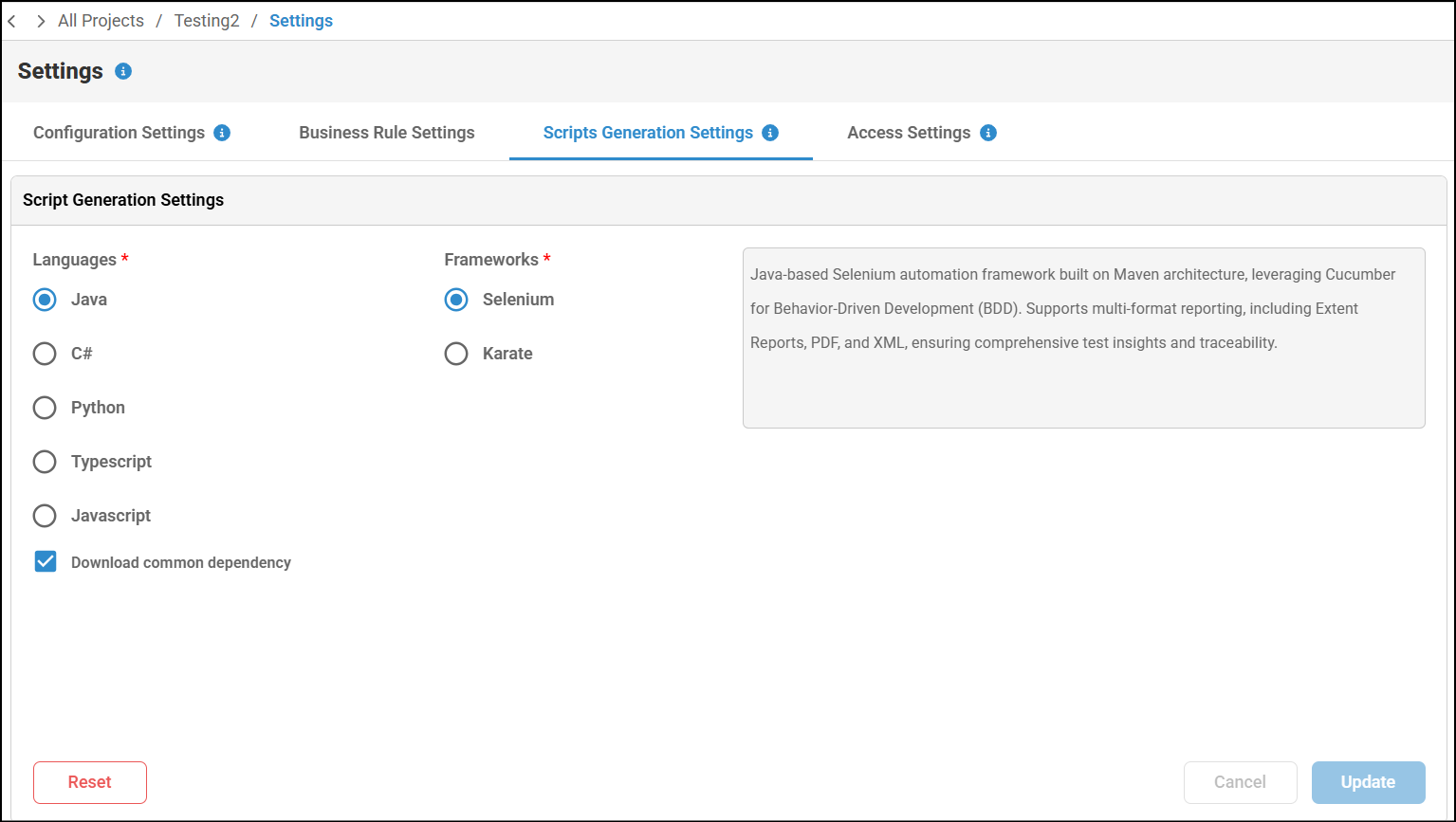
Perform the following:
- Navigate to the Settings.
- Click the Script Generation Settings.
- In the Script Generation screen, you can update language and frameworks of a specific automation type.
- You can choose whether to include common dependencies when generating the script. Before generating the script, select the Download Common Dependency checkbox to include them, or clear the checkbox if they are not required.
- Click Update button.
- If you choose to revert back to original changes, then click the Reset button if you have already updated and click on cancel if not updated.
6. Summary Description of Access Settings Page
In Access Settings, as an admin, you can assign permissions to users to perform the tasks.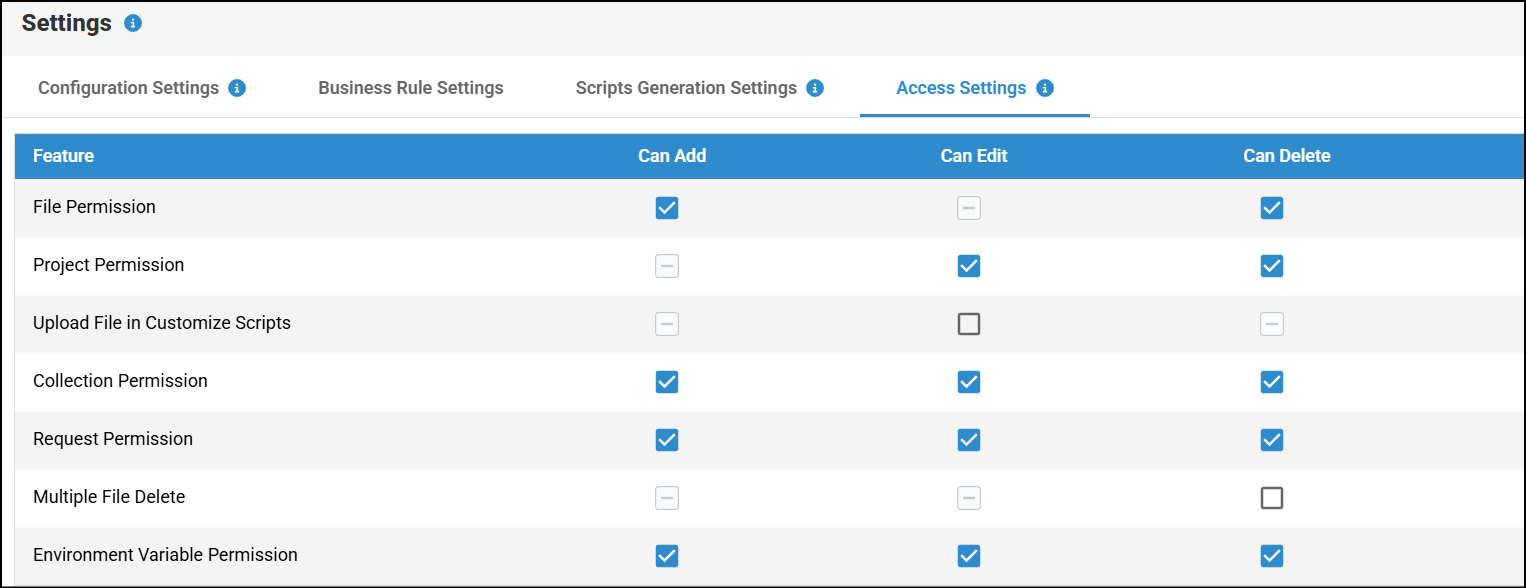
Perform the following:
- Select a project created by you and navigate to the settings.
- Select the Access Settings.
- In this Access Settings page, you can assign permissions to add, edit and delete the capabilities by selecting the relavant checkbox. For example, as an admin if you uncheck the permissions for generating Auto Generate Test Cases, then the team member will not have access to use Auto Generate Test Cases feature.
- The following table provides the available access settings options that an administrator can assign to a user:
This applies for API automation.
| Access Settings option | Description |
| File Permission | As an admin, you can remove access to a user to upload or create any file. Upload file or create file option will be disabled for a particular project. As a user, you will be still be able to edit and delete an uploaded or created file. Additionally, as an admin, you can also restrict the access to edit and delete a file by removing access to edit and delete options. |
| Project Permission | As an admin, you can remove access to a user to delete a created project. Delete button will be disabled when you access as a user. Also as an admin, you can remove access to a user to edit a project. Udpdate button of project settings will be disabled when you access as a user. |
| Upload Script Permission | As an admin, you can grant a user access to edit the generated scripts for a specific project. |
| Collection Permission | As an admin, you can assign access to a user to Add, Edit and delete API collections from API project. |
| Request Permission | As an admin, you can assign access to a user to Add, Edit and delete API Request from API project. |
| Multiple Files Delete Permission | As an admin, you can assign access to a user to delete multiple files from the project folder. By default, Delete all option will be disabled to prevent any unintended file deletion from a user. |
| Environment Variable Permission | As an admin, you can assign access to a user to Add, Edit and delete Environment variable from API project. |
Was this article helpful?
That’s Great!
Thank you for your feedback
Sorry! We couldn't be helpful
Thank you for your feedback
Feedback sent
We appreciate your effort and will try to fix the article