TABLE OF CONTENTS
2. How To Use Scrape UI Feature
1. Overview
algoScraper extension is designed for web applications that automatically captures all User Interface (UI) elements along with their corresponding XPaths.
This article provides detailed information about how to use the Scrape UI feature.
2. How To Use Scrape UI Feature
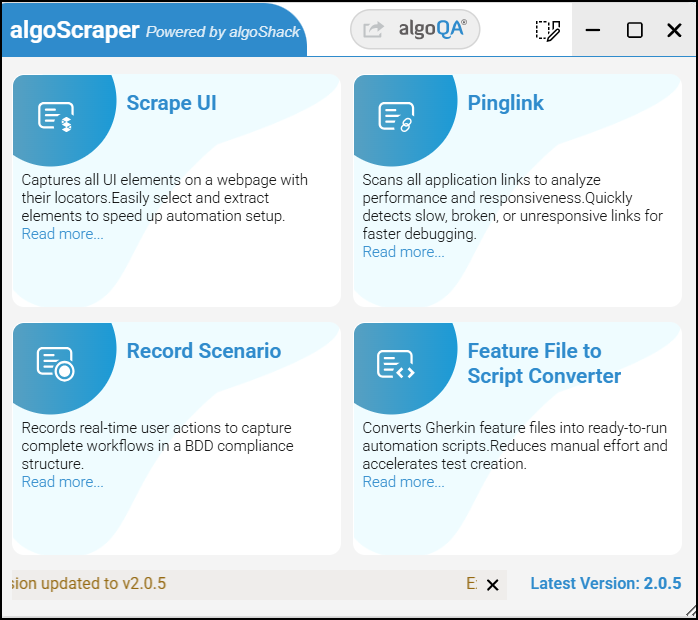
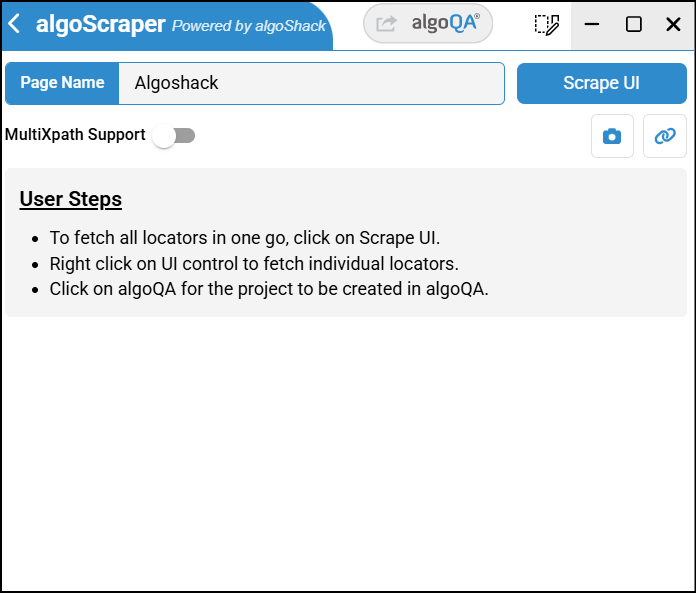
- Open the application for which you wish to scrape the entire page at one go, click the extension to view the algoScraper window and click Scrape UI button. Scrape UI page will appear with Page name being added automatically.
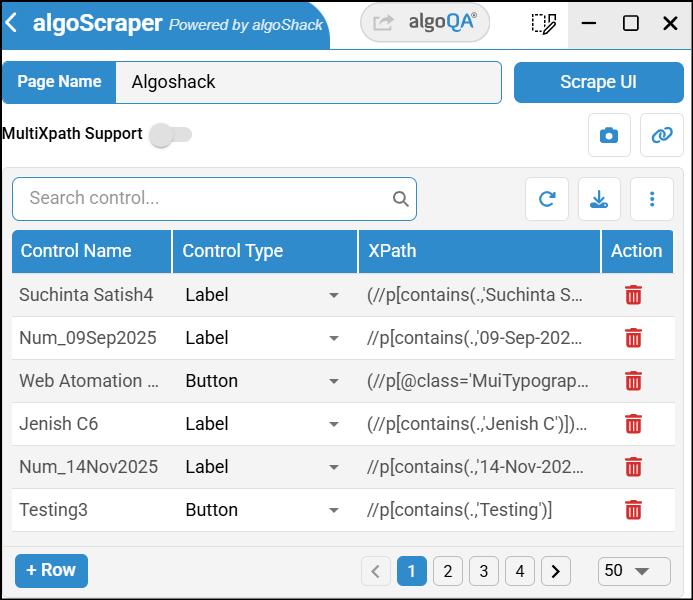
- Click on Scrape UI button and all the UI element details with corresponding XPath expression of the scraped UI page details will be listed.
- If you wish to scrape element by element, Navigate to a particular UI element, right-click to capture the XPath expression of that UI element. The captured details are added to the scraped element table list.
- You can also use MultiXpath Support so that multiple XPath expressions can be used, To know more check MultiXPath Support.
- You can also add feature name for a control, To know more about how to add feature check How to Create a Feature Section from Scraper.
- You can use the pagination feature to easily navigate through and review all the listed UI elements.
- To delete a UI element, click the delete icon next to the respective element.
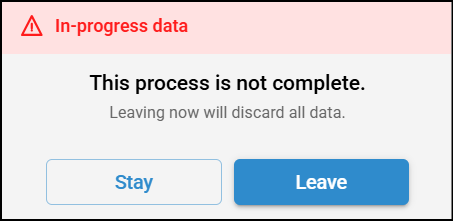
- if you try to click on back button a notification pop-up will appear saying 'Leaving now will discard all data'.
- Click the + Row button to manually add additional rows and UI elements.
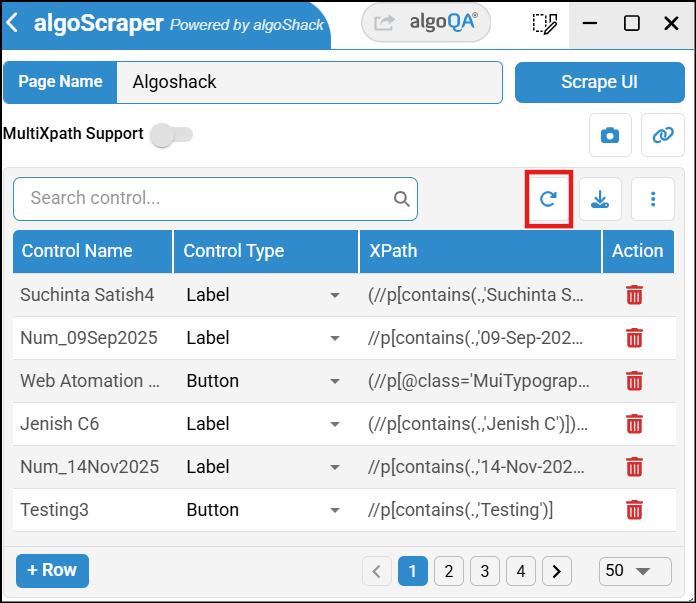
- To remove all scraped details, click the Reset button.
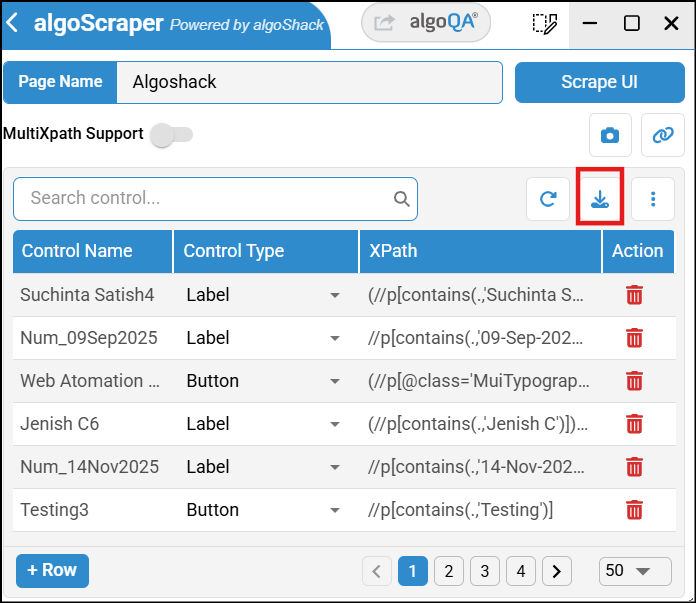
- Click Download button to download the scraped UI elements table in a .json format. If you have edited the control names from the scraper then the edit will reflect in .json file.
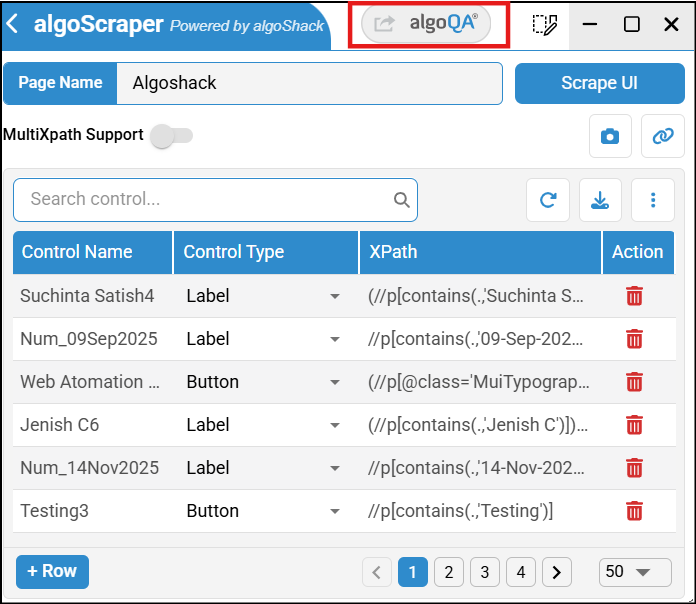
- Click on algoQA button for the project be created in algoQA.
Was this article helpful?
That’s Great!
Thank you for your feedback
Sorry! We couldn't be helpful
Thank you for your feedback
Feedback sent
We appreciate your effort and will try to fix the article