TABLE OF CONTENTS
2. How to Use the Features in Canvas
1. Overview
This article provides a detailed overview of Canvas and the features available within it.
2. How to Use the Features in Canvas
- After creating a project using a scraped file, the nodes are automatically created in the canvas.
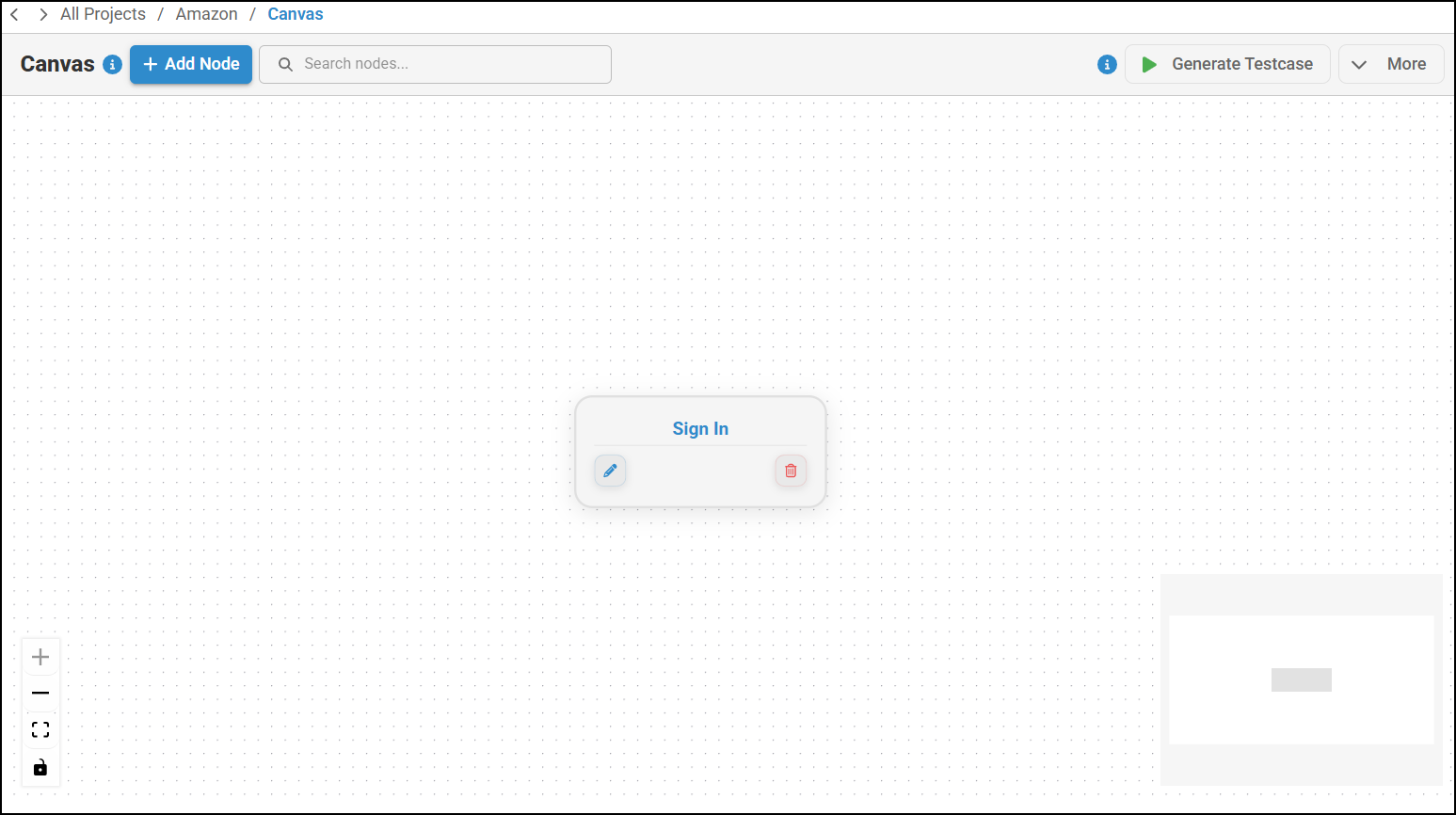
- To add a node, click Add Node, edit the node name, and click Save.
- If needed, nodes can be dragged and repositioned, followed by clicking Save.
- Nodes can be searched using the search field. When a search is performed, only the matching node is displayed, and all other nodes are hidden. To view all nodes again, simply clear the search.
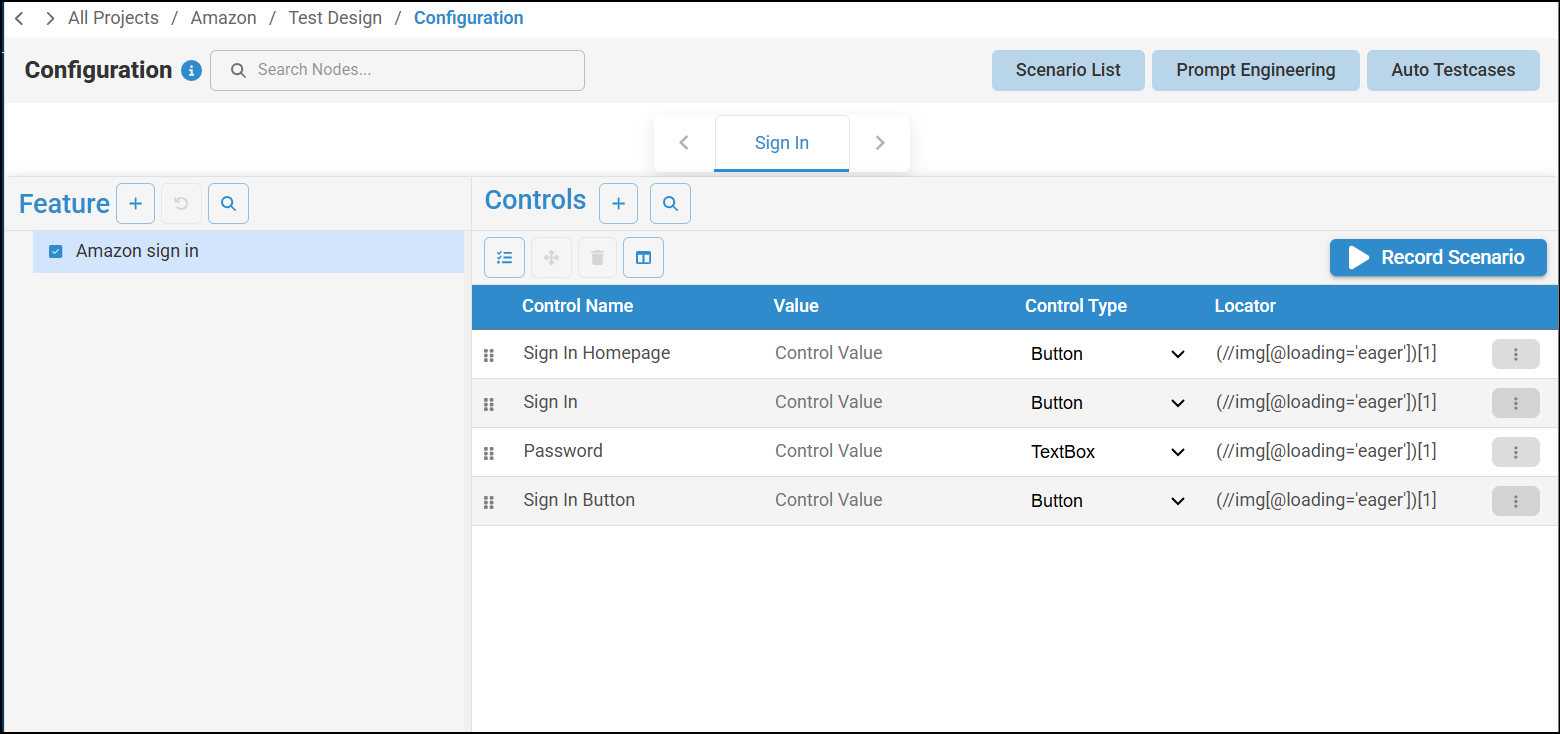
- You can configure a node by clicking the node name. This will direct you to the Test Design >> Configuration screen, where you can add and configure features and controls. You can also record scenarios from this screen.
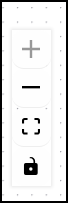
- You can use the ‘+’ icon to zoom in, the ‘–’ icon to zoom out, Fit View to display the nodes correctly within the view, and the Lock icon to toggle the nodes without saving.
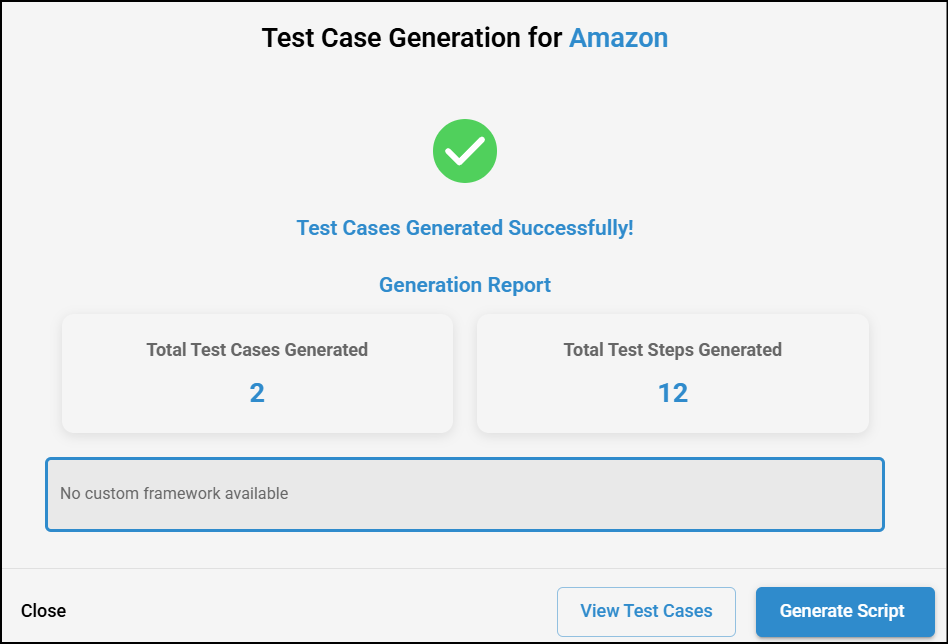
- By clicking the Generate Test Case button, test cases generation pop-up will appear. From there, you can view the test cases and generate scripts.
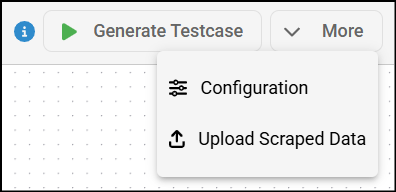
- The More dropdown provides options to update the configuration and upload scraped data.
Was this article helpful?
That’s Great!
Thank you for your feedback
Sorry! We couldn't be helpful
Thank you for your feedback
Feedback sent
We appreciate your effort and will try to fix the article