TABLE OF CONTENTS
2. How to have User Defined Logs in Report
1. Overview
This article provides clear information on how to retrieve user-defined logs in a report.
Note: This feature is currently available only for Web Automation and Python Selenium framework.
2. How to have User Defined Logs in Report
While profiling in AlgoQA, go to the Scenario Steps List page and click the edit icon next to the desired GWT step. In the Edit Step pop-up, click on More Options to reveal the Message field. Enter your message in the field, then click Save. and do rest of the profiling process and generate scripts.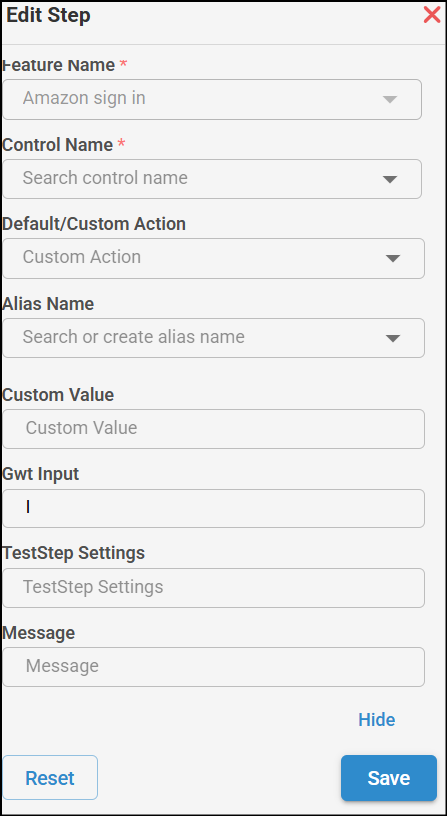
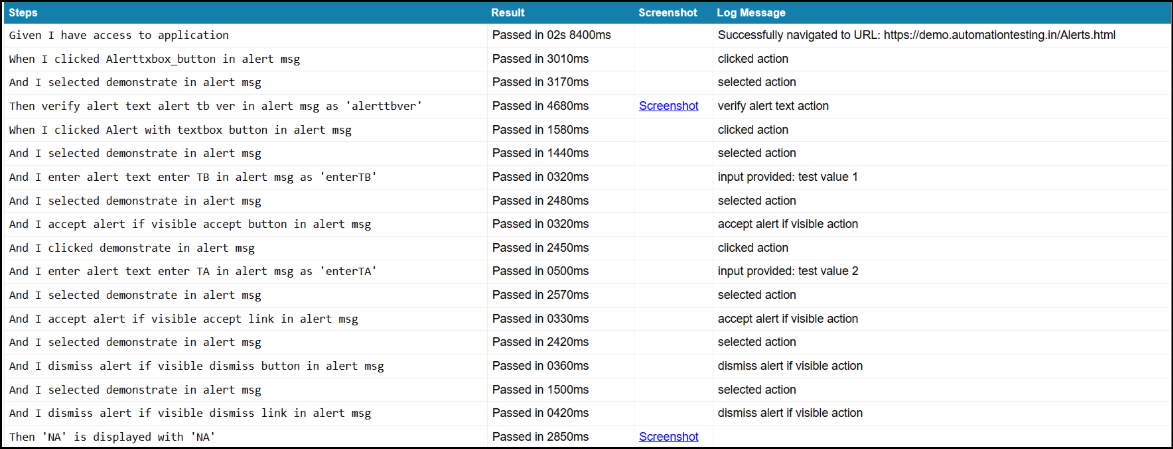
After executing the scripts and generating the report, user-defined logs can be viewed in the Log Message section. When user-defined logs are not available, the system provides a meaningful default message. The product name is also included in the navigation URL, and overall log messages have been further refined for clarity.
Was this article helpful?
That’s Great!
Thank you for your feedback
Sorry! We couldn't be helpful
Thank you for your feedback
Feedback sent
We appreciate your effort and will try to fix the article