TABLE OF CONTENTS
2. Uploading the Existing Scraped File
1. Overview
If you have an existing scraped file and wish to upload it to generate the test cases and scripts.
2. Uploading the Existing Scraped File
Perform the following:
- After logging into algoshack.net, navigate to the Projects.
- Re-scraping involves re-extracting data from a web page. It is performed when changes occur on the web page or application under test. You can upload the updated re-scraped file while profiling the application and generate test cases.
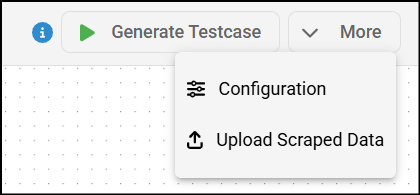
- Navigate to the Projects and select a existing web project, you'll be directed to Canvas, click on more dropdown and Upload Scraped Data.
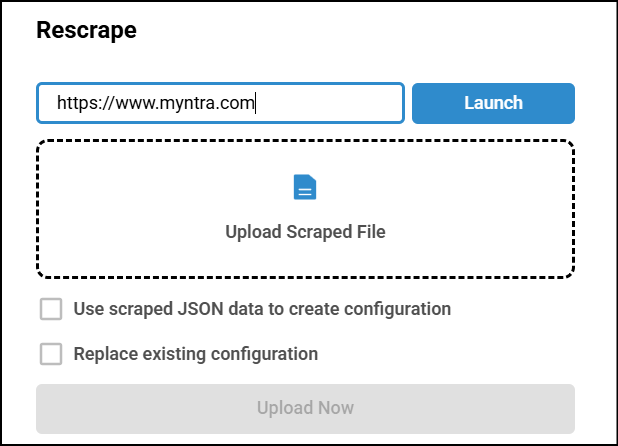
- Enter the target URL in the Application URL field, and click Launch.
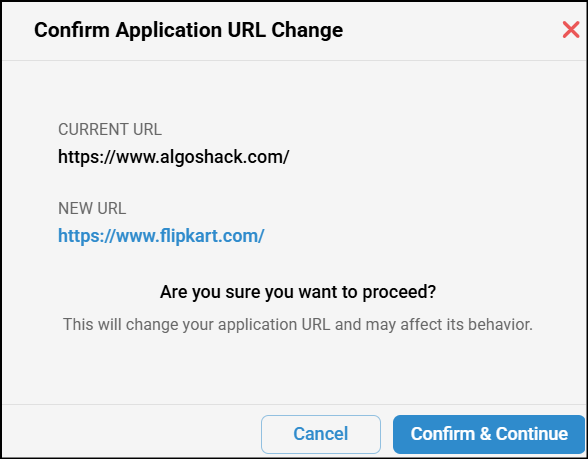
- A confirmation pop-up appears when changing the application URL, informing you of the update before proceeding.
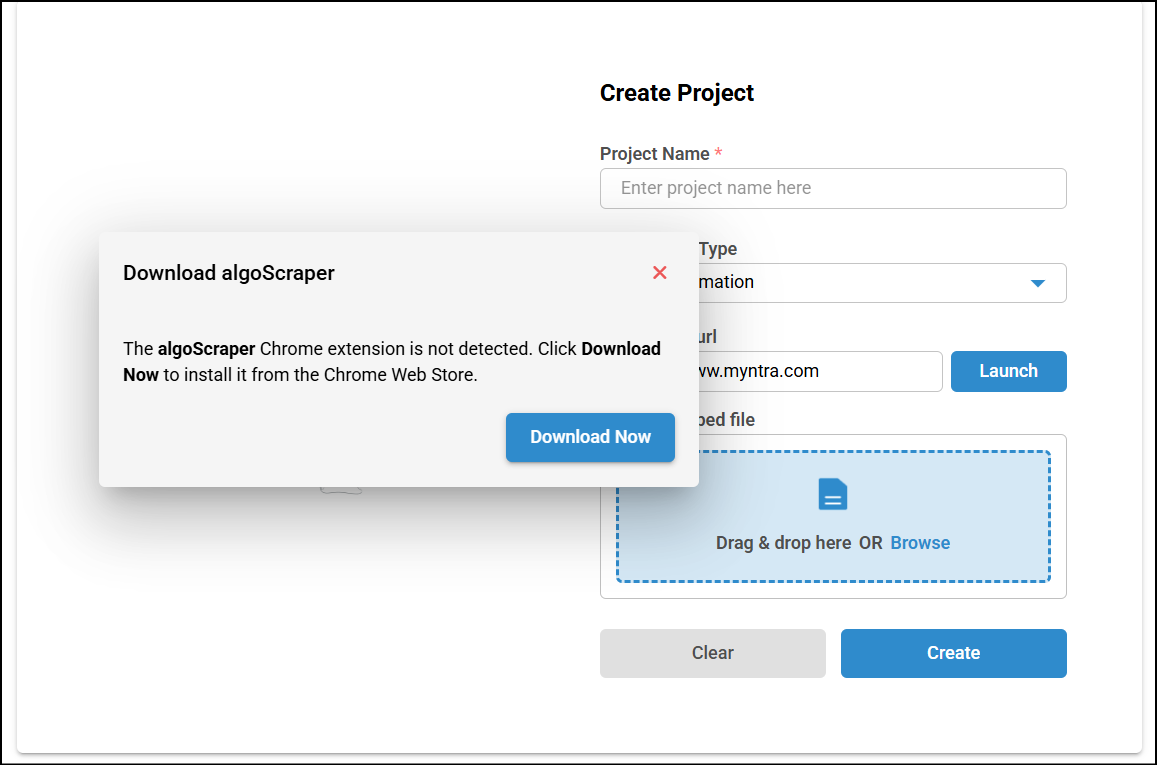
Note: If you don’t have the algoScraper extension installed, a pop-up will appear prompting you to download the scraper.
The web page will open with the scraper enabled. You can use the scraper to capture UI elements. , click here to know more about Scarping Web applications. After scraping the UI elements, click the algoQA button to navigate back to the Upload Scraped Data page, with the scraped file automatically attached, select Replace Existing Configuration checkbox if you want replace the configuration and click on Upload Now, the nodes will be created in canvas.
Note: When uploading third-party files, they are scanned for viruses before the upload process is completed to ensure the file is safe and secure.
Was this article helpful?
That’s Great!
Thank you for your feedback
Sorry! We couldn't be helpful
Thank you for your feedback
Feedback sent
We appreciate your effort and will try to fix the article